> ## Documentation Index
> Fetch the complete documentation index at: https://cndoc-langchain.site/llms.txt
> Use this file to discover all available pages before exploring further.
# 以编程方式使用文档
> 将 LangChain 文档连接到您的 AI 工具和工作流
我们希望让文档尽可能易于访问。我们提供了多种方式,让您可以通过 AI 助手、代码编辑器和直接集成(例如模型上下文协议(MCP))以编程方式使用这些文档。
## 快速访问选项
在我们文档的任何页面上,您都会在右上角找到一个上下文菜单下拉框:
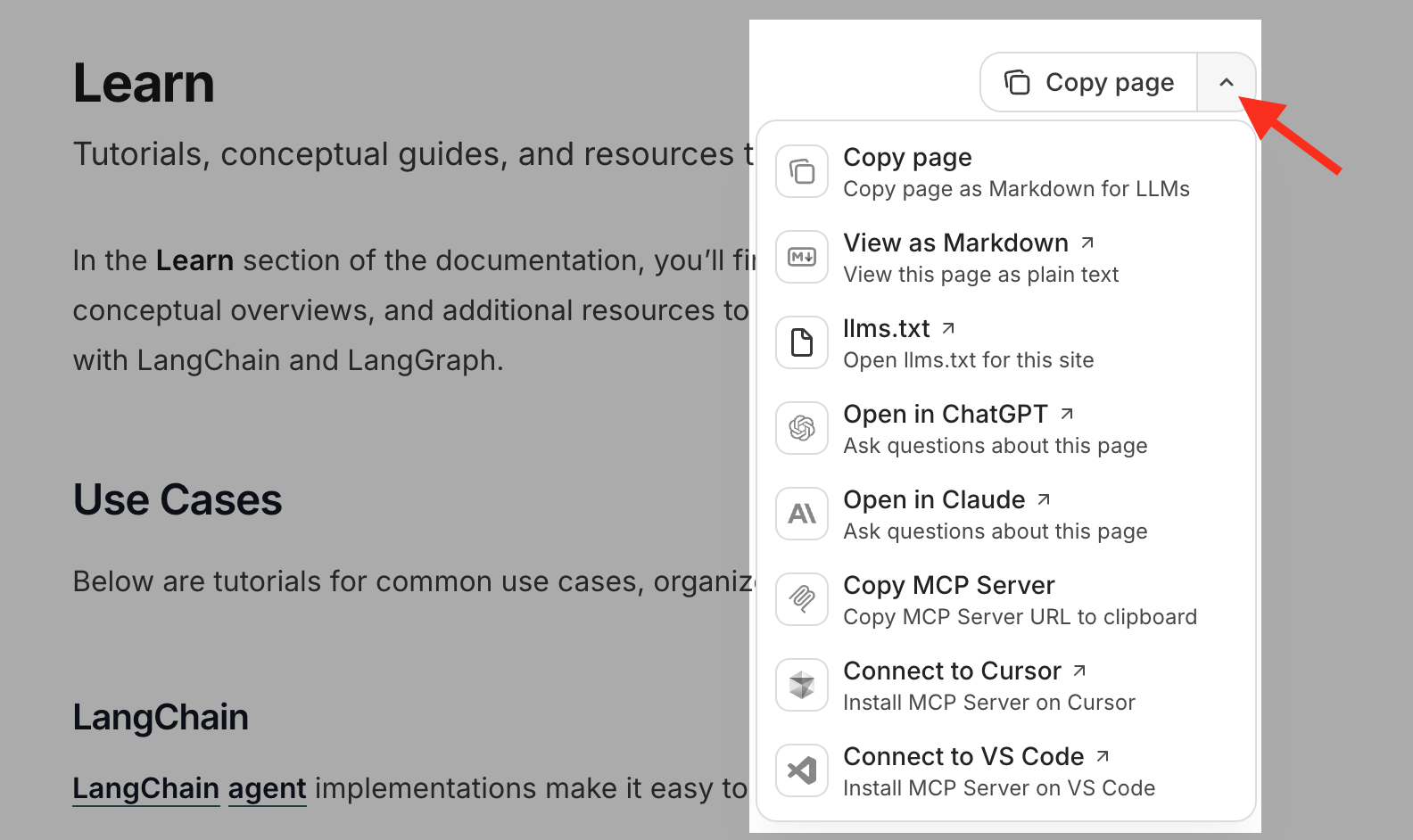
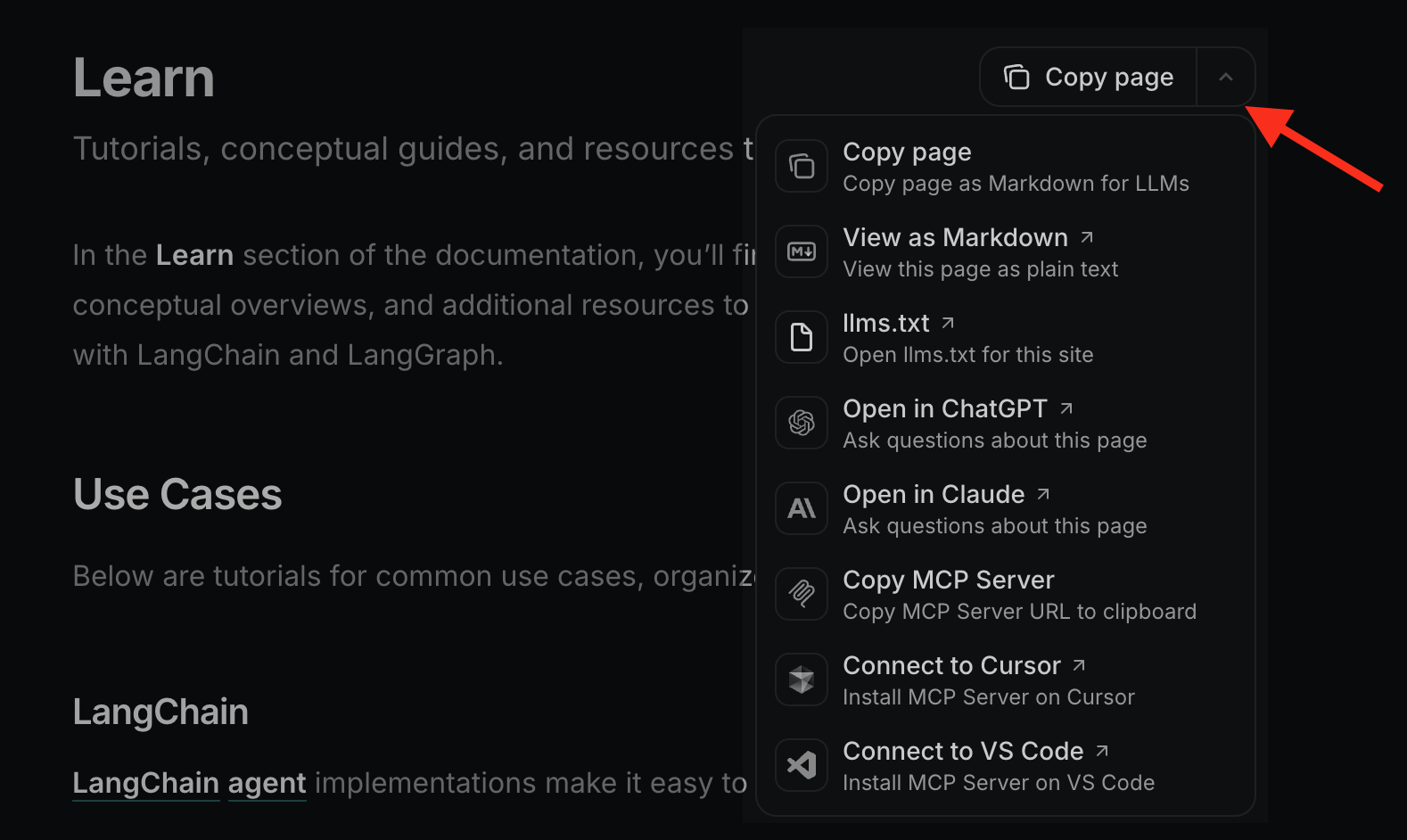 这包括我们的 `llms.txt`、MCP 服务器连接以及其他快速访问选项,例如 ChatGPT 和 Claude。
## 使用我们的 MCP 服务器
我们的文档包含一个内置的 **模型上下文协议(MCP)服务器**,允许 AI 应用程序实时查询最新文档。
LangChain 文档 MCP 服务器的地址是:
```txt theme={"theme":{"light":"catppuccin-latte","dark":"catppuccin-mocha"}}
https://docs.langchain.com/mcp
```
连接后,您可以向 AI 助手询问有关 LangChain、LangGraph 和 LangSmith 的问题,它将搜索我们的文档以提供准确、最新的答案。
### 与 Claude Code 连接
如果您正在使用 Claude Code,请在终端中运行此命令,将服务器添加到当前项目:
```bash theme={"theme":{"light":"catppuccin-latte","dark":"catppuccin-mocha"}}
claude mcp add --transport http docs-langchain https://docs.langchain.com/mcp
```
**项目(本地)范围**
上述命令仅将 MCP 服务器添加到您当前的项目/工作目录。要全局添加 MCP 服务器并在所有项目中访问它,请通过在命令中添加 `--scope user` 来添加用户范围:
```bash theme={"theme":{"light":"catppuccin-latte","dark":"catppuccin-mocha"}}
claude mcp add --transport http docs-langchain --scope user https://docs.langchain.com/mcp
```
### 与 Claude Desktop 连接
1. 打开 Claude Desktop
2. 转到 设置 > 连接器
3. 添加我们的 MCP 服务器 URL:`https://docs.langchain.com/mcp`
### 与 Codex CLI 连接
如果您正在使用 OpenAI Codex CLI,请在终端中运行此命令以全局添加服务器:
```sh theme={"theme":{"light":"catppuccin-latte","dark":"catppuccin-mocha"}}
codex mcp add langchain-docs --url https://docs.langchain.com/mcp
```
### 与 Cursor 连接
将以下内容添加到您的 MCP 设置配置文件:
```json theme={"theme":{"light":"catppuccin-latte","dark":"catppuccin-mocha"}}
{
"mcpServers": {
"docs-langchain": {
"url": "https://docs.langchain.com/mcp"
}
}
}
```
### 与 VS Code 连接
将以下内容添加到您的 MCP 设置配置文件:
```json theme={"theme":{"light":"catppuccin-latte","dark":"catppuccin-mocha"}}
{
"servers": {
"docs-langchain": {
"url": "https://docs.langchain.com/mcp"
}
}
}
```
### 与 Antigravity 连接
将以下内容添加到您的 MCP 设置配置文件:
```json theme={"theme":{"light":"catppuccin-latte","dark":"catppuccin-mocha"}}
{
"mcpServers": {
"docs-langchain": {
"serverUrl": "https://docs.langchain.com/mcp"
}
}
}
```
## 了解更多
有关使用 Mintlify MCP 服务器的更多信息,请参阅 [Mintlify 官方文档](https://www.mintlify.com/docs/ai/model-context-protocol)。
有问题或反馈?请在我们的[社区论坛](https://forum.langchain.com/)中告知我们。
***
这包括我们的 `llms.txt`、MCP 服务器连接以及其他快速访问选项,例如 ChatGPT 和 Claude。
## 使用我们的 MCP 服务器
我们的文档包含一个内置的 **模型上下文协议(MCP)服务器**,允许 AI 应用程序实时查询最新文档。
LangChain 文档 MCP 服务器的地址是:
```txt theme={"theme":{"light":"catppuccin-latte","dark":"catppuccin-mocha"}}
https://docs.langchain.com/mcp
```
连接后,您可以向 AI 助手询问有关 LangChain、LangGraph 和 LangSmith 的问题,它将搜索我们的文档以提供准确、最新的答案。
### 与 Claude Code 连接
如果您正在使用 Claude Code,请在终端中运行此命令,将服务器添加到当前项目:
```bash theme={"theme":{"light":"catppuccin-latte","dark":"catppuccin-mocha"}}
claude mcp add --transport http docs-langchain https://docs.langchain.com/mcp
```
**项目(本地)范围**
上述命令仅将 MCP 服务器添加到您当前的项目/工作目录。要全局添加 MCP 服务器并在所有项目中访问它,请通过在命令中添加 `--scope user` 来添加用户范围:
```bash theme={"theme":{"light":"catppuccin-latte","dark":"catppuccin-mocha"}}
claude mcp add --transport http docs-langchain --scope user https://docs.langchain.com/mcp
```
### 与 Claude Desktop 连接
1. 打开 Claude Desktop
2. 转到 设置 > 连接器
3. 添加我们的 MCP 服务器 URL:`https://docs.langchain.com/mcp`
### 与 Codex CLI 连接
如果您正在使用 OpenAI Codex CLI,请在终端中运行此命令以全局添加服务器:
```sh theme={"theme":{"light":"catppuccin-latte","dark":"catppuccin-mocha"}}
codex mcp add langchain-docs --url https://docs.langchain.com/mcp
```
### 与 Cursor 连接
将以下内容添加到您的 MCP 设置配置文件:
```json theme={"theme":{"light":"catppuccin-latte","dark":"catppuccin-mocha"}}
{
"mcpServers": {
"docs-langchain": {
"url": "https://docs.langchain.com/mcp"
}
}
}
```
### 与 VS Code 连接
将以下内容添加到您的 MCP 设置配置文件:
```json theme={"theme":{"light":"catppuccin-latte","dark":"catppuccin-mocha"}}
{
"servers": {
"docs-langchain": {
"url": "https://docs.langchain.com/mcp"
}
}
}
```
### 与 Antigravity 连接
将以下内容添加到您的 MCP 设置配置文件:
```json theme={"theme":{"light":"catppuccin-latte","dark":"catppuccin-mocha"}}
{
"mcpServers": {
"docs-langchain": {
"serverUrl": "https://docs.langchain.com/mcp"
}
}
}
```
## 了解更多
有关使用 Mintlify MCP 服务器的更多信息,请参阅 [Mintlify 官方文档](https://www.mintlify.com/docs/ai/model-context-protocol)。
有问题或反馈?请在我们的[社区论坛](https://forum.langchain.com/)中告知我们。
***
[将这些文档](/use-these-docs)通过 MCP 连接到 Claude、VSCode 等,以获取实时答案。
[在 GitHub 上编辑此页面](https://github.com/langchain-ai/docs/edit/main/src/use-these-docs.mdx) 或 [提交问题](https://github.com/langchain-ai/docs/issues/new/choose)。