> ## Documentation Index
> Fetch the complete documentation index at: https://cndoc-langchain.site/llms.txt
> Use this file to discover all available pages before exploring further.

# 在提示中使用工具

工具允许语言模型与外部系统交互，并执行超出仅生成文本范围的操作。在 Playground 中，您可以使用两种类型的工具：

1. [**内置工具**](#内置工具)：由模型提供商（如 OpenAI 和 Anthropic）提供的预配置工具，可直接使用。当您需要网页搜索或代码解释等常见功能时，请使用内置工具。
2. [**自定义工具**](#创建自定义工具)：您定义的用于执行特定任务的函数。当您需要与自己的系统集成或创建专门功能时，这些工具非常有用。在 Playground 中定义自定义工具时，您可以验证模型是否正确识别并使用正确的参数调用这些工具。

LangSmith 会自动将您创建的工具保存到工作区范围的[工具注册表](#通过注册表管理工具)中，使其可在所有提示和会话中重复使用。

## 内置工具

Playground 原生支持来自 OpenAI 和 Anthropic 的多种工具。如果您想使用未在 Playground 中明确列出的工具，仍然可以通过手动指定其 `type` 和任何必需参数来添加。

### OpenAI 工具

* **网页搜索**：[搜索网络获取实时信息](https://platform.openai.com/docs/guides/tools-web-search?api-mode=responses)。
* **图像生成**：[根据文本提示生成图像](https://platform.openai.com/docs/guides/tools-image-generation)。
* **MCP**：[使模型能够访问托管在远程 MCP 服务器上的工具](https://platform.openai.com/docs/guides/tools-remote-mcp)。
* [查看所有 OpenAI 工具](https://platform.openai.com/docs/guides/tools?api-mode=responses)。

### Anthropic 工具

* **网页搜索**：[搜索网络获取最新信息](https://platform.claude.com/docs/en/agents-and-tools/tool-use/web-search-tool)。
* [查看所有 Anthropic 工具](https://platform.claude.com/docs/en/agents-and-tools/tool-use/overview)。

## 添加和使用工具

Playground 允许您通过单击快速[添加工具](#添加工具)到任何提示。您可以从 OpenAI 和 Anthropic 等模型提供商提供的内置工具中选择，也可以定义自己的[自定义工具](#创建自定义工具)以满足特定需求。创建自定义工具后，它会自动添加到工作区范围的[工具注册表](#通过注册表管理工具)中，您可以在不同提示中启用、禁用或编辑它，而无需重新创建。

### 添加工具

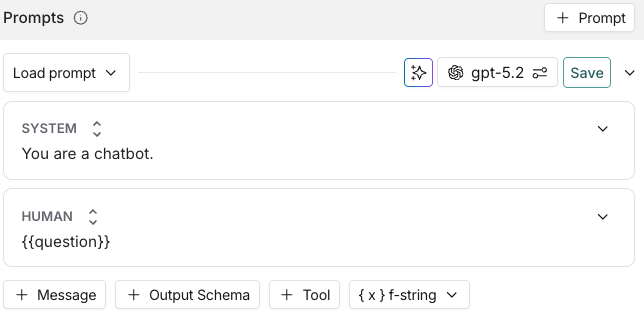
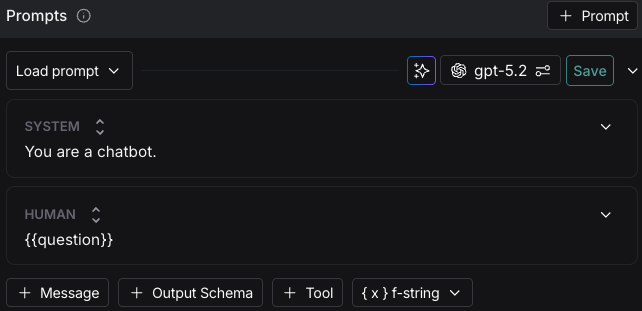
要将工具添加到提示中，请单击提示编辑器底部的 **+ 工具** 按钮。

<img className="block dark:hidden" src="https://mintcdn.com/other-405835d4/6Toz5fHjgEZXpscE/langsmith/images/add-tool-light.png?fit=max&auto=format&n=6Toz5fHjgEZXpscE&q=85&s=b9534b3b7bd3085d4bf88e4451129c51" alt="提示界面，编辑框后跟有 + 工具按钮。" width="644" height="316" data-path="langsmith/images/add-tool-light.png" />

<img className="hidden dark:block" src="https://mintcdn.com/other-405835d4/6Toz5fHjgEZXpscE/langsmith/images/add-tool-dark.png?fit=max&auto=format&n=6Toz5fHjgEZXpscE&q=85&s=10d420b86edc890b9d0131cb43626b4d" alt="提示界面，编辑框后跟有 + 工具按钮。" width="642" height="311" data-path="langsmith/images/add-tool-dark.png" />

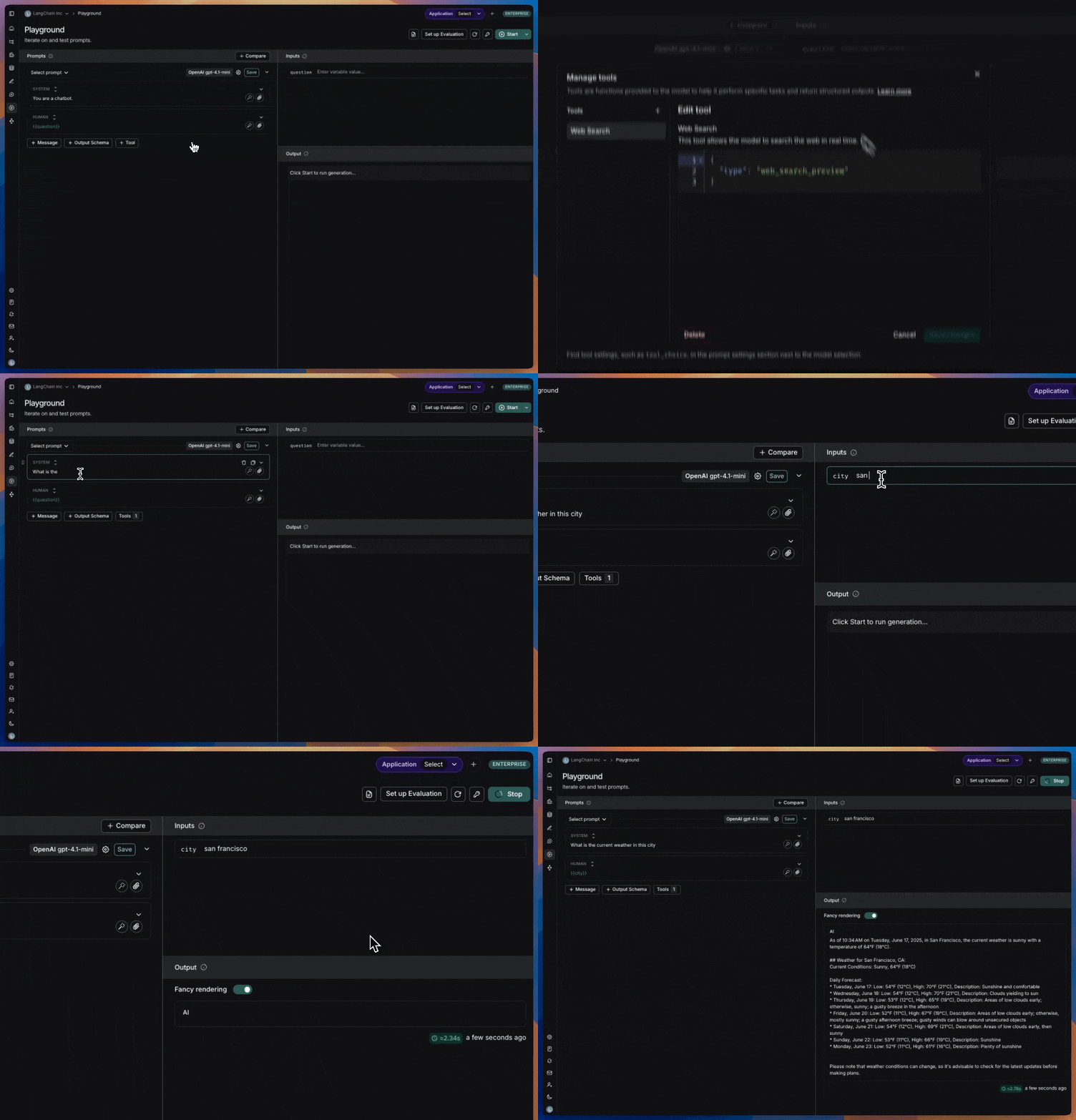
### 使用内置工具

1. 在工具部分，选择您要使用的内置工具。您只会看到与所选提供商和模型兼容的工具。
2. 当模型调用该工具时，Playground 将显示响应。

   <img src="https://mintcdn.com/other-405835d4/HWk8WH3Ivd1grcHm/langsmith/images/web-search-tool.gif?s=44fb4e30efe182c4c7e8894d15a43e5a" alt="网页搜索工具" width="1036" height="720" data-path="langsmith/images/web-search-tool.gif" />

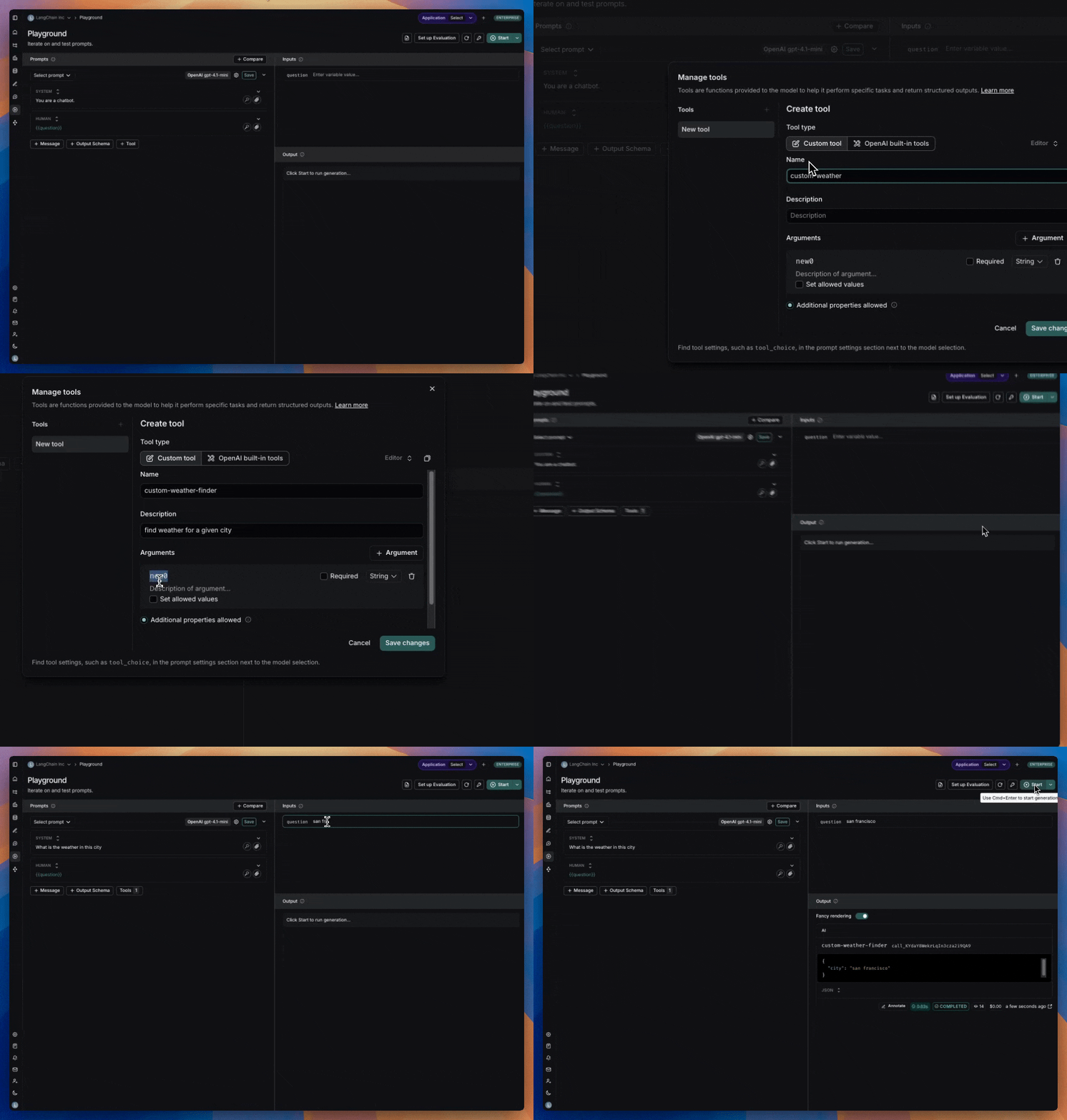
### 创建自定义工具

要创建自定义工具，您需要提供：

* **名称**：工具的描述性名称。
* **描述**：工具功能的清晰说明。
* **参数**：工具所需的输入。

<img src="https://mintcdn.com/other-405835d4/jwwDDYly65_K9YMB/langsmith/images/custom-tool.gif?s=db36ef4b760a6afdf61c94b670e6e3cb" alt="自定义工具" width="1028" height="720" data-path="langsmith/images/custom-tool.gif" />

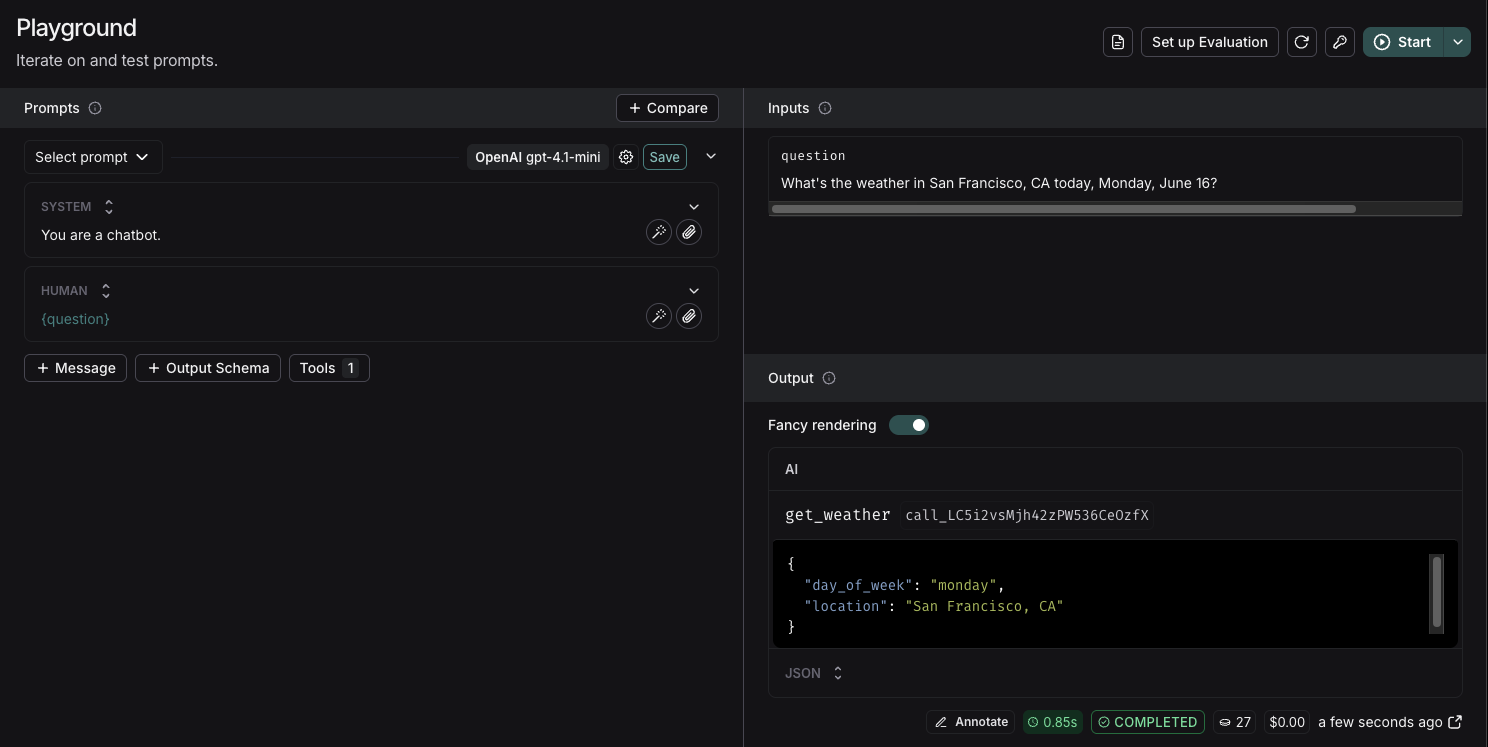
在 Playground 中运行自定义工具时，模型将响应一个包含工具名称和工具调用的 JSON 对象。

<img src="https://mintcdn.com/other-405835d4/77NFW0Y3VGYDwREY/langsmith/images/tool-call.png?fit=max&auto=format&n=77NFW0Y3VGYDwREY&q=85&s=29485a89f4dce56ac6d83ff27939be6f" alt="工具调用" width="1488" height="747" data-path="langsmith/images/tool-call.png" />

### 通过注册表管理工具

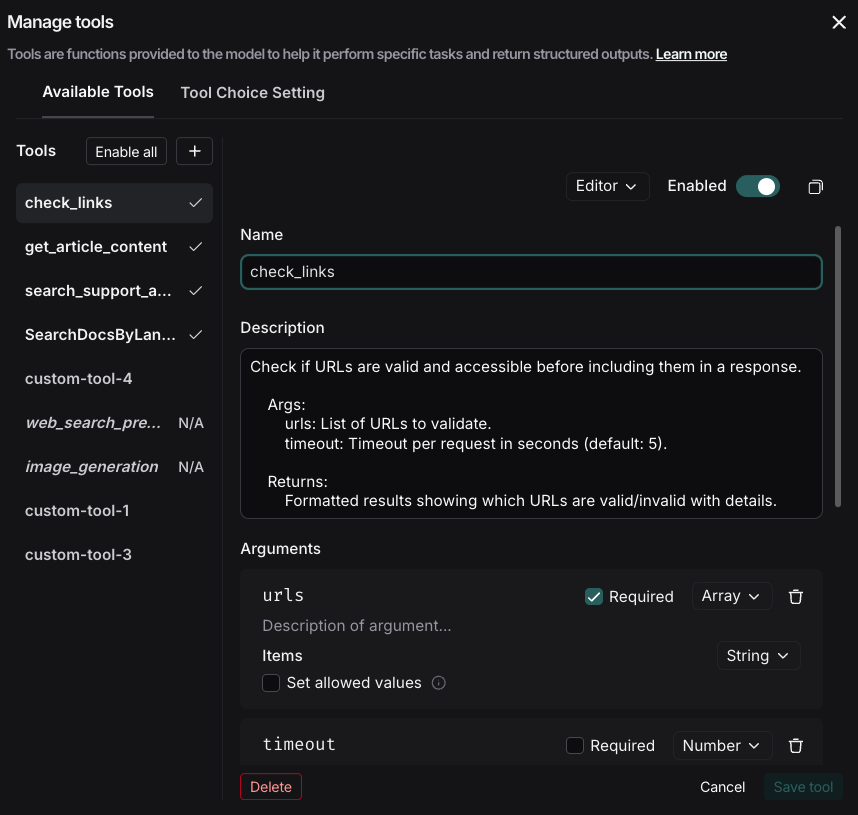
Playground 包含一个[工作区](/langsmith/administration-overview#workspaces)范围的**工具注册表**，可在提示和会话中持久保存自定义和内置工具。当您创建自定义工具或添加内置工具时，它会自动保存到您的工作区注册表中，并可在任何提示中重复使用。您可以按提示启用或禁用工具，以控制每个特定提示的活动工具；编辑共享工具时，您可以选择更新注册表版本或另存为新工具。

单击 Playground 中的 **+ 工具** 按钮以打开**管理工具**。您可以执行以下操作：

* 在**可用工具**选项卡中选择和查看现有工具。
* 使用**已启用**开关切换单个工具的开/关状态。
* 通过单击列表中的现有工具进行编辑。
* 使用**管理工具**底部的**删除**功能删除工具。
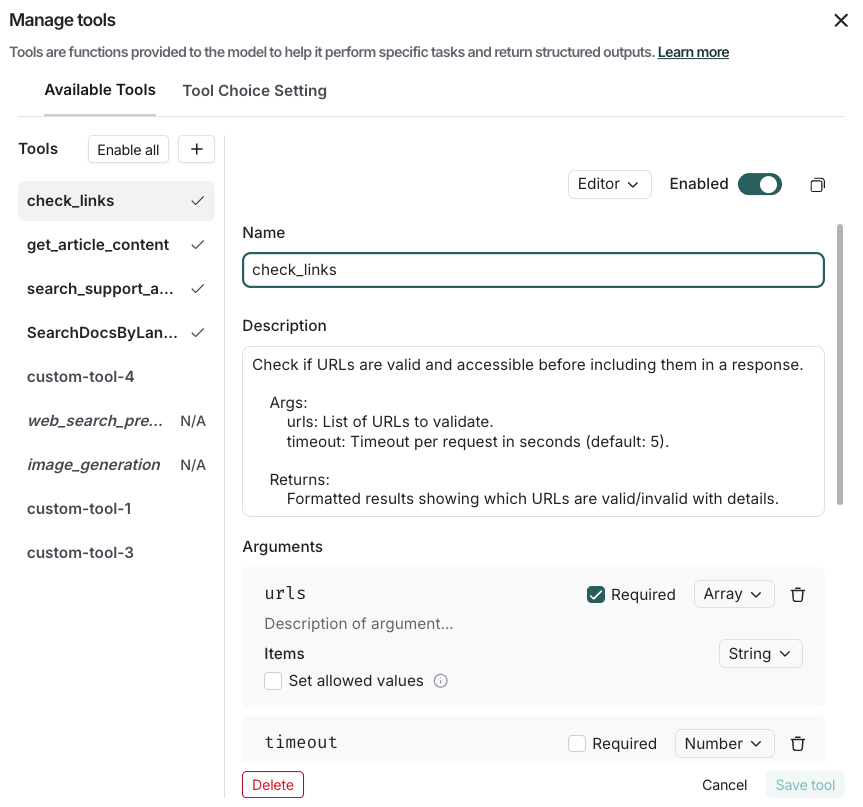
<img className="block dark:hidden" src="https://mintcdn.com/other-405835d4/77NFW0Y3VGYDwREY/langsmith/images/tool-registry-manage-light.png?fit=max&auto=format&n=77NFW0Y3VGYDwREY&q=85&s=793176c8f0f808a058023cfa61a2c42e" alt="管理工具界面，包含可用工具列表、已启用开关和编辑功能。" width="863" height="807" data-path="langsmith/images/tool-registry-manage-light.png" />

<img className="hidden dark:block" src="https://mintcdn.com/other-405835d4/77NFW0Y3VGYDwREY/langsmith/images/tool-registry-manage-dark.png?fit=max&auto=format&n=77NFW0Y3VGYDwREY&q=85&s=104d1c136b887089ffed948081456cfd" alt="管理工具界面，包含可用工具列表、已启用开关和编辑功能。" width="858" height="815" data-path="langsmith/images/tool-registry-manage-dark.png" />

工具存储时包含其完整配置，包括名称、描述、参数和元数据。注册表支持自定义函数工具和内置工具配置。

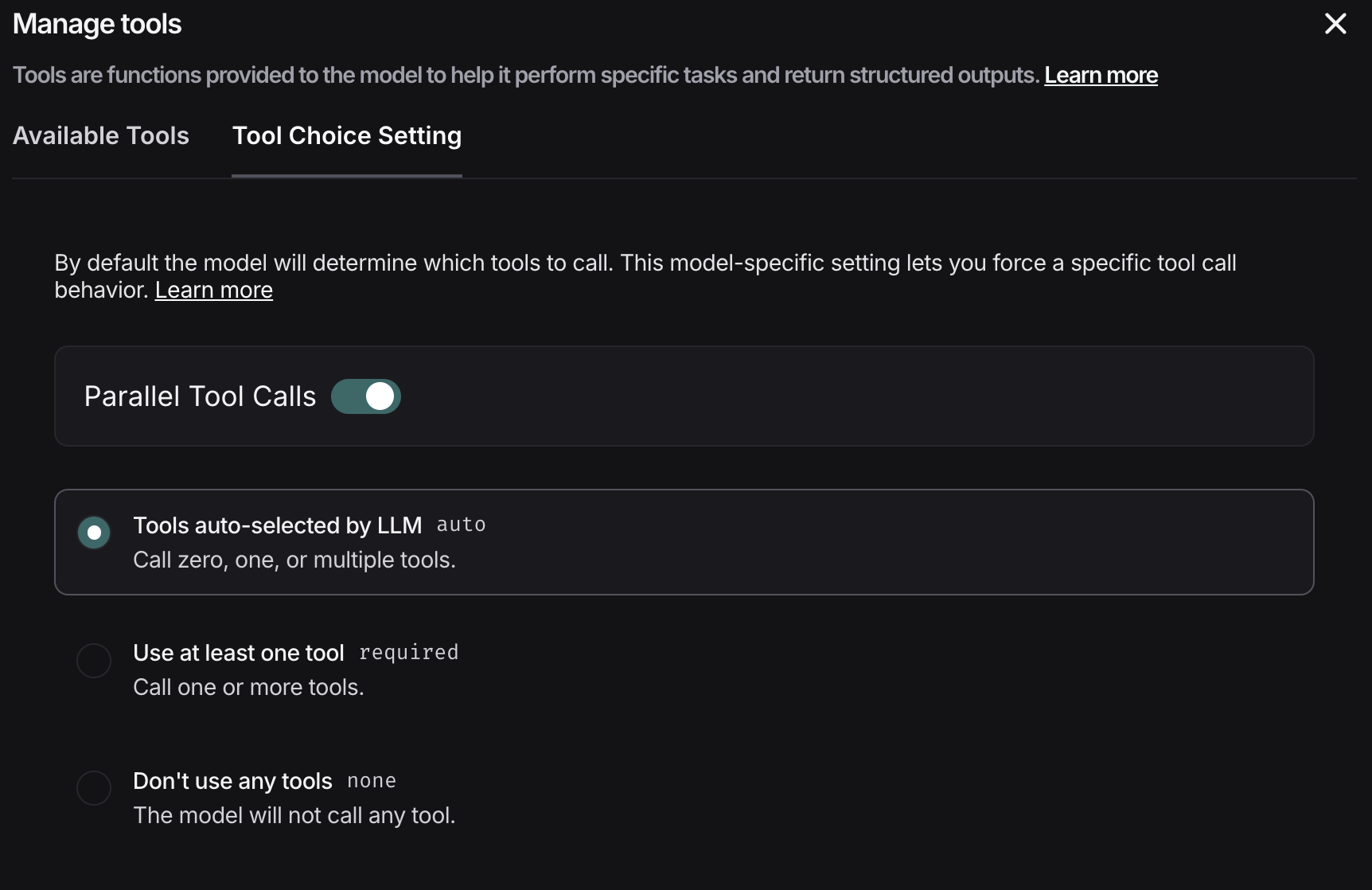
## 工具选择设置

某些模型提供对调用哪些工具的控制。要配置此功能：

1. 在提示编辑器下选择 **+ 工具**。
2. 导航到**工具选择设置**选项卡。
3. 选择您的工具选择。

要了解可用的工具选择选项，请查看特定提供商的文档。例如，[OpenAI 关于工具选择的文档](https://platform.openai.com/docs/guides/function-calling/function-calling-behavior?api-mode=responses#tool-choice)。
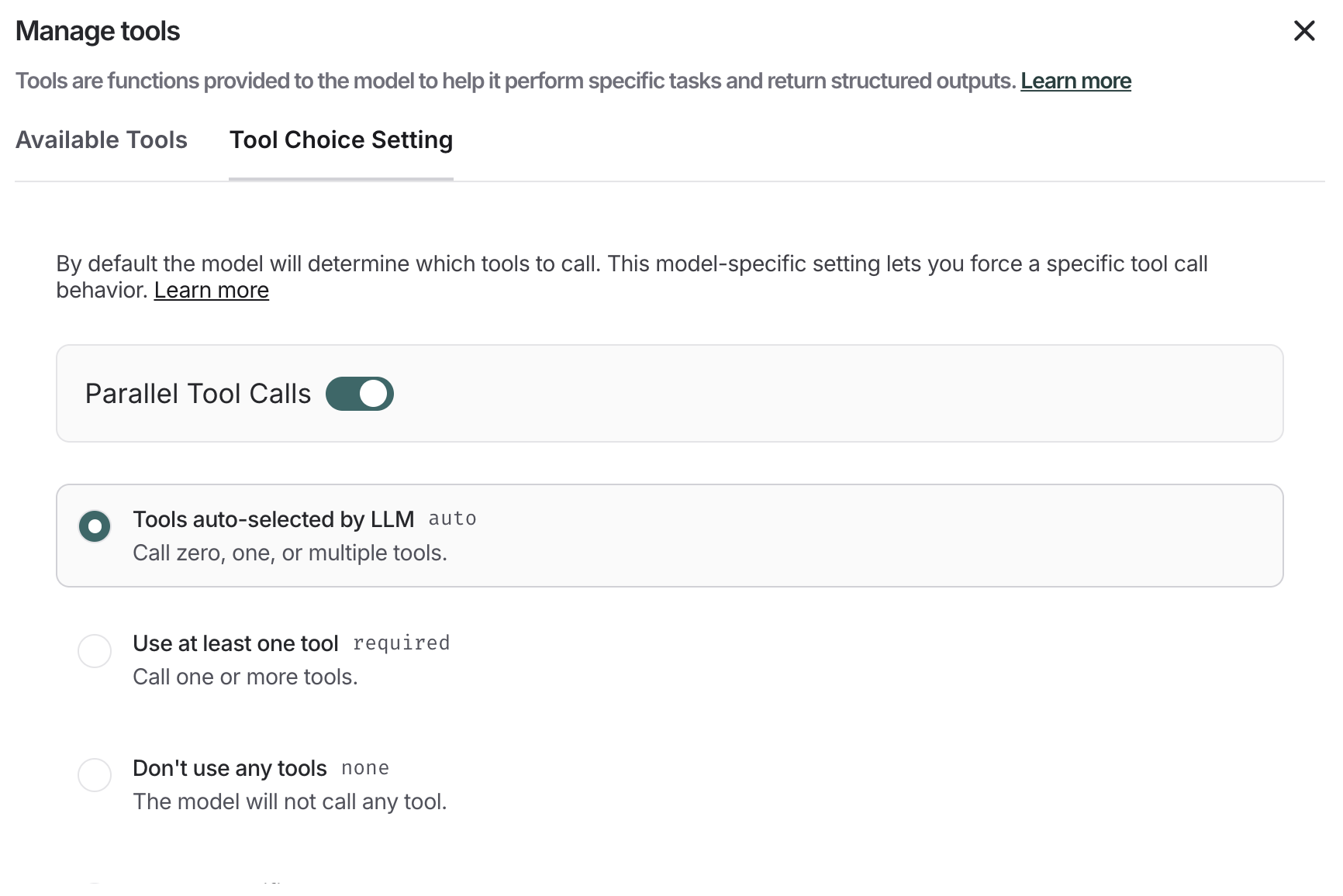
<img className="block dark:hidden" src="https://mintcdn.com/other-405835d4/77NFW0Y3VGYDwREY/langsmith/images/tool-choice-light.png?fit=max&auto=format&n=77NFW0Y3VGYDwREY&q=85&s=ed5b3e81968af07451b3262f1f7a3b8c" alt="从工具选择设置选项卡中选择工具。" width="1732" height="1156" data-path="langsmith/images/tool-choice-light.png" />

<img className="hidden dark:block" src="https://mintcdn.com/other-405835d4/77NFW0Y3VGYDwREY/langsmith/images/tool-choice-dark.png?fit=max&auto=format&n=77NFW0Y3VGYDwREY&q=85&s=ec2e52bf4eedf4b2b5ddd595d39aa47a" alt="从工具选择设置选项卡中选择工具。" width="1724" height="1118" data-path="langsmith/images/tool-choice-dark.png" />

***

<div className="source-links">
  <Callout icon="terminal-2">
    [连接这些文档](/use-these-docs)到 Claude、VSCode 等，通过 MCP 获取实时答案。
  </Callout>

  <Callout icon="edit">
    [在 GitHub 上编辑此页面](https://github.com/langchain-ai/docs/edit/main/src/langsmith/use-tools.mdx) 或 [提交问题](https://github.com/langchain-ai/docs/issues/new/choose)。
  </Callout>
</div>