> ## Documentation Index
> Fetch the complete documentation index at: https://cndoc-langchain.site/llms.txt
> Use this file to discover all available pages before exploring further.
# 从演练场运行评估
LangSmith 允许您直接在界面中运行评估。[**演练场**](/langsmith/prompt-engineering-concepts#playground) 允许您针对一系列输入测试您的提示词或模型配置,以查看其在不同上下文或场景下的评分表现,而无需编写任何代码。
在运行评估之前,您需要拥有一个[现有数据集](/langsmith/evaluation-concepts#datasets)。了解如何[从界面创建数据集](/langsmith/manage-datasets-in-application#create-a-dataset-and-add-examples)。
如果您想改从 Studio 运行评估,请参阅[在 Studio 中针对数据集运行实验](/langsmith/observability-studio#run-experiments-over-a-dataset)。如果您更喜欢在代码中运行实验,请参阅[使用 SDK 运行评估](/langsmith/evaluate-llm-application)。
 **[Polly](/langsmith/polly)** 在演练场中可用,可帮助您在运行评估前优化提示词。
## 在演练场中创建实验
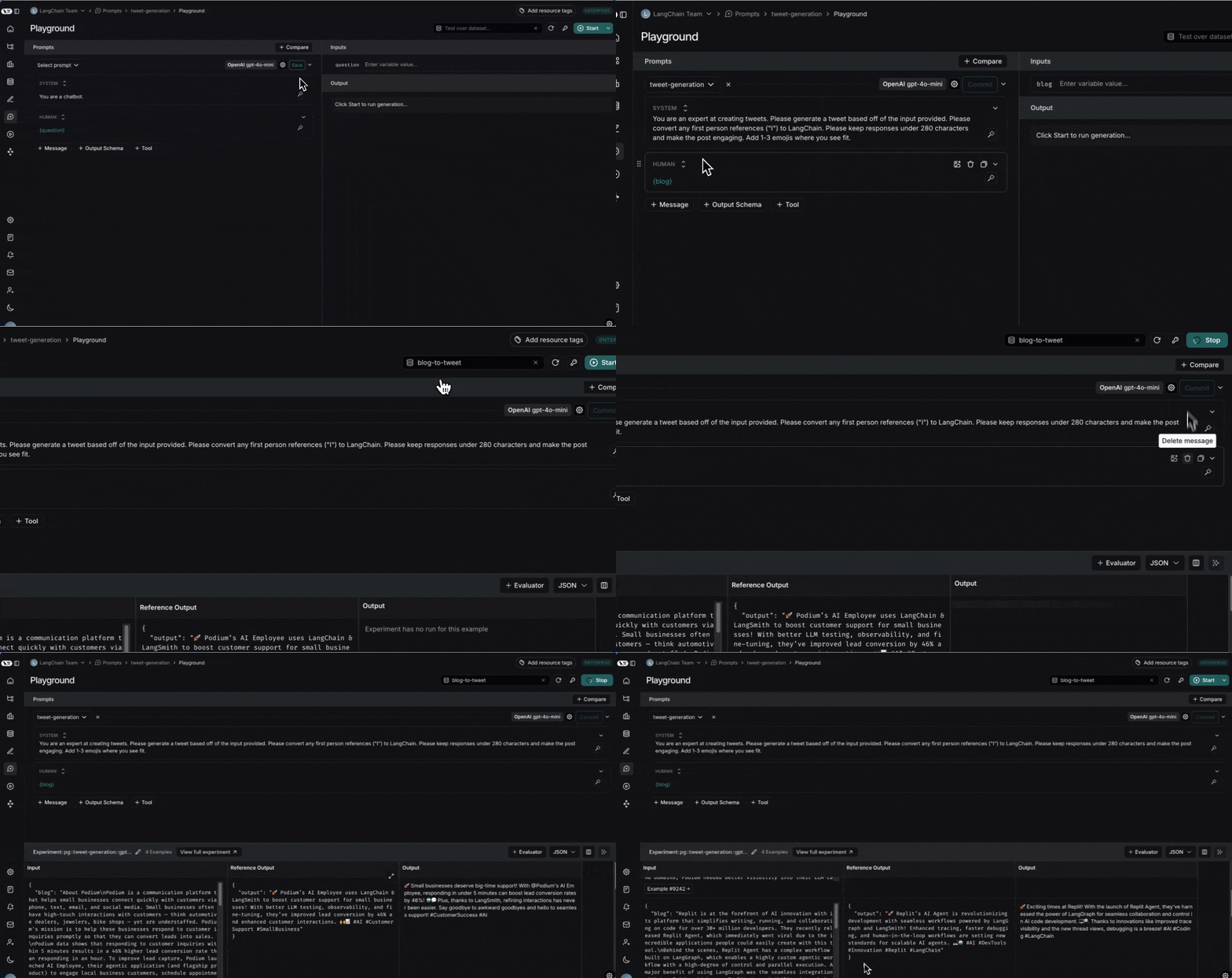
1. **点击侧边栏中的演练场**。
2. **添加提示词**,方法是选择一个现有的已保存提示词或创建一个新的。
3. **从“针对数据集测试”下拉菜单中选择一个数据集**
* 请注意,数据集输入中的键必须与提示词的输入变量匹配。例如,在上面的视频中,所选数据集的输入具有键 "blog",这与提示词的输入变量正确匹配。
* 演练场中最多允许 15 个输入变量。
4. **启动实验**,方法是点击 **Start** 或按 CMD+Enter。这将针对数据集中的所有示例运行提示词,并在数据集详情页面中为该实验创建一个条目。我们建议在启动实验前将提示词提交到提示词中心,以便在后续审查实验时可以轻松引用。
5. **查看完整结果**,方法是点击 **View full experiment**。这将带您进入实验详情页面,您可以在那里查看实验结果。
## 为实验添加评估分数
通过添加评估器,根据特定标准评估您的实验。在演练场中使用 **+Evaluator** 按钮添加 LLM-as-a-judge 或自定义代码评估器。
要了解更多关于通过界面添加评估器的信息,请访问[如何定义 LLM-as-a-judge 评估器](/langsmith/llm-as-judge)。
***
**[Polly](/langsmith/polly)** 在演练场中可用,可帮助您在运行评估前优化提示词。
## 在演练场中创建实验
1. **点击侧边栏中的演练场**。
2. **添加提示词**,方法是选择一个现有的已保存提示词或创建一个新的。
3. **从“针对数据集测试”下拉菜单中选择一个数据集**
* 请注意,数据集输入中的键必须与提示词的输入变量匹配。例如,在上面的视频中,所选数据集的输入具有键 "blog",这与提示词的输入变量正确匹配。
* 演练场中最多允许 15 个输入变量。
4. **启动实验**,方法是点击 **Start** 或按 CMD+Enter。这将针对数据集中的所有示例运行提示词,并在数据集详情页面中为该实验创建一个条目。我们建议在启动实验前将提示词提交到提示词中心,以便在后续审查实验时可以轻松引用。
5. **查看完整结果**,方法是点击 **View full experiment**。这将带您进入实验详情页面,您可以在那里查看实验结果。
## 为实验添加评估分数
通过添加评估器,根据特定标准评估您的实验。在演练场中使用 **+Evaluator** 按钮添加 LLM-as-a-judge 或自定义代码评估器。
要了解更多关于通过界面添加评估器的信息,请访问[如何定义 LLM-as-a-judge 评估器](/langsmith/llm-as-judge)。
***
[将这些文档连接](/use-these-docs)到 Claude、VSCode 等,通过 MCP 获取实时答案。
[在 GitHub 上编辑此页面](https://github.com/langchain-ai/docs/edit/main/src/langsmith/run-evaluation-from-playground.mdx) 或 [提交问题](https://github.com/langchain-ai/docs/issues/new/choose)。