> ## Documentation Index
> Fetch the complete documentation index at: https://cndoc-langchain.site/llms.txt
> Use this file to discover all available pages before exploring further.
# 提示工程快速入门
提示词引导大语言模型(LLM)的行为。[提示工程](/langsmith/prompt-engineering-concepts)是设计、测试和优化你提供给LLM的指令的过程,以使其产生可靠且有用的响应。
LangSmith 提供了创建、版本控制、测试和协作处理提示词的工具。你还会遇到一些常见概念,如[提示词模板](/langsmith/prompt-engineering-concepts#prompts-vs-prompt-templates),它允许你重用结构化的提示词;以及[变量](/langsmith/prompt-engineering-concepts#f-string-vs-mustache),它允许你将值(例如用户的问题)动态插入到提示词中。
在本快速入门中,你将使用 UI 或 SDK 来创建、测试和改进提示词。本快速入门将以 OpenAI 作为示例 LLM 提供商,但相同的工作流程也适用于其他提供商。
## 前提条件
在开始之前,请确保你已具备:
* **一个 LangSmith 账户**:在 [smith.langchain.com](https://smith.langchain.com) 注册或登录。
* **一个 LangSmith API 密钥**:按照[创建 API 密钥](/langsmith/create-account-api-key)指南操作。
* **一个 OpenAI API 密钥**:从 [OpenAI 控制面板](https://platform.openai.com/account/api-keys)生成。
选择 UI 或 SDK 工作流的选项卡:
## 1. 设置工作区密钥
在 [LangSmith UI](https://smith.langchain.com) 中,确保您的 API 密钥已设置为[工作区密钥](/langsmith/set-up-hierarchy#configure-workspace-settings)。
1. 导航至 **设置**,然后转到 **密钥** 选项卡。
2. 选择 **添加密钥**,输入密钥环境变量(例如,`OPENAI_API_KEY` 或 `ANTHROPIC_API_KEY`)以及您的 API 密钥作为 **值**。
3. 选择 **保存密钥**。
在 LangSmith UI 中添加工作区密钥时,请确保密钥键名与您的模型提供商期望的环境变量名称相匹配。
## 2. 创建提示词
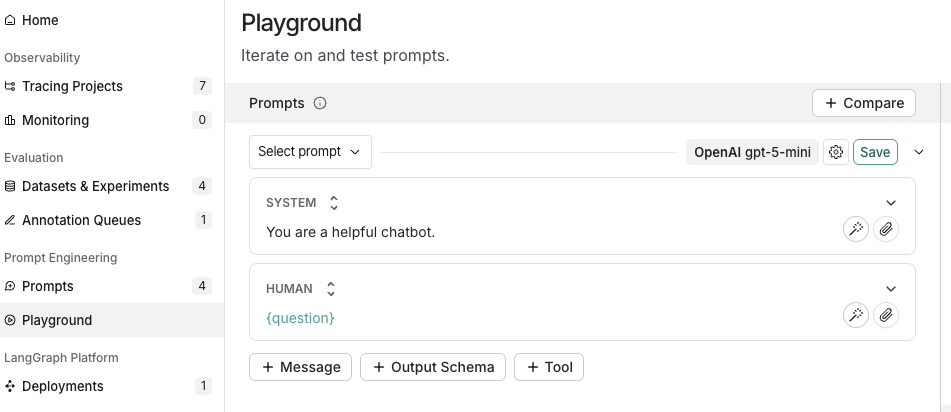
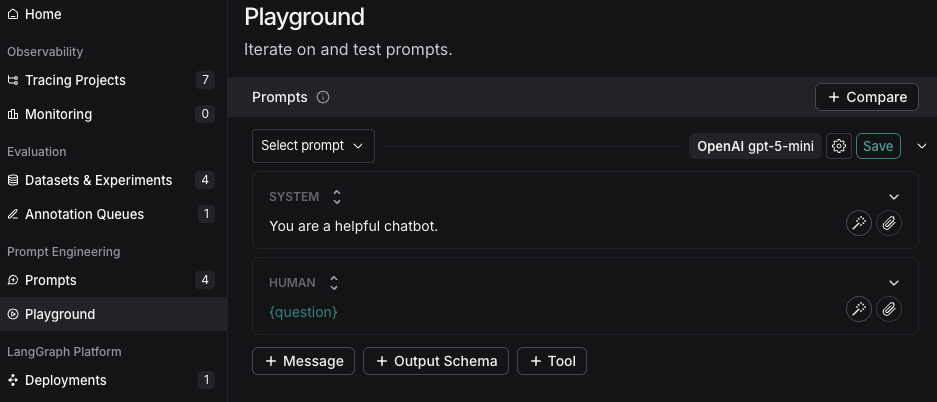
1. 在 [LangSmith UI](https://smith.langchain.com) 中,导航到左侧菜单的 **Prompts** 部分。
2. 点击 **+ Prompt** 创建一个提示词。
3. 根据需要编辑或添加提示词和输入变量来修改提示词。
## 3. 测试提示词
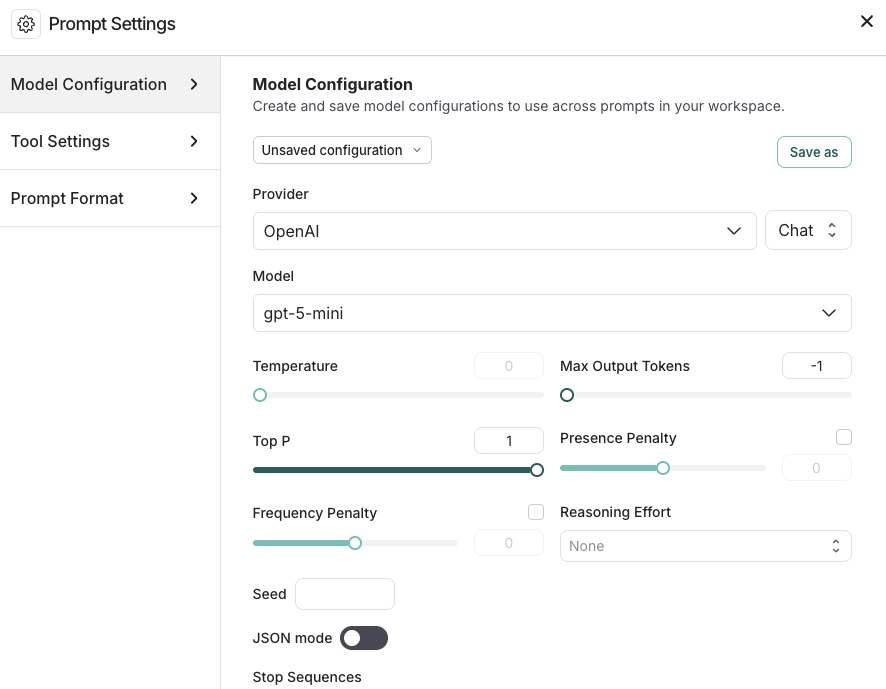
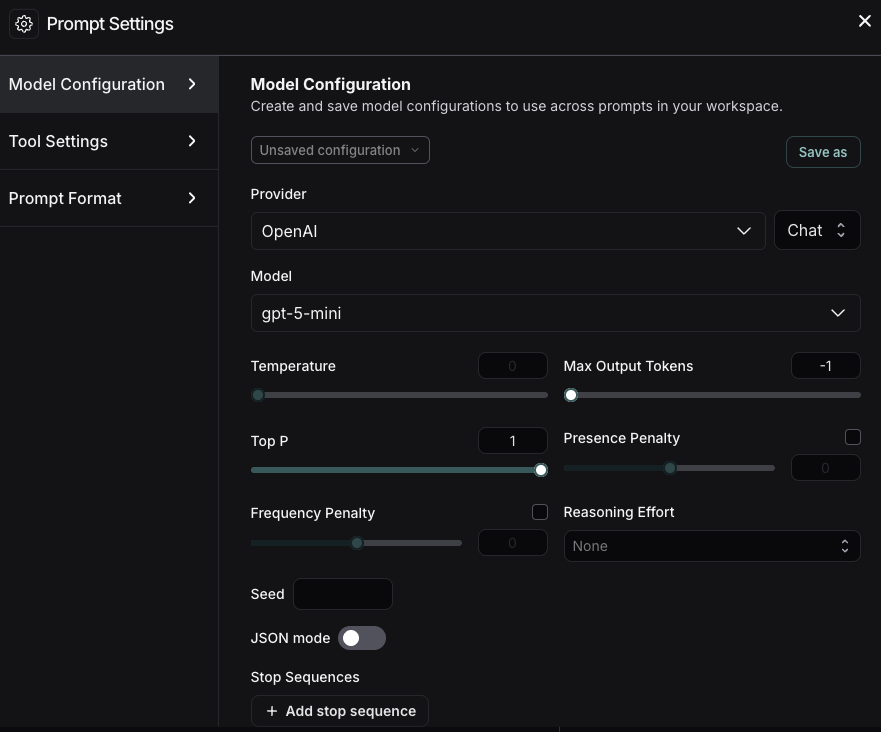
1. 在 **Prompts** 标题下,选择模型名称旁边的齿轮 图标,这将打开 **Prompt Settings** 窗口的 **Model Configuration** 选项卡。
2. 设置你想要使用的[模型配置](/langsmith/managing-model-configurations)。你选择的 **Provider** 和 **Model** 将决定此配置页面上可配置的参数。设置完成后,点击 **Save as**。
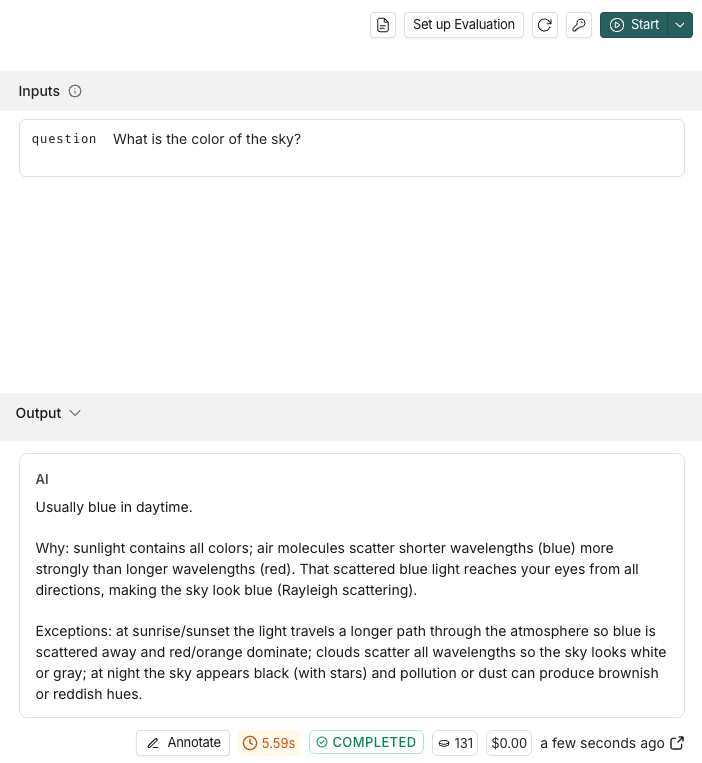
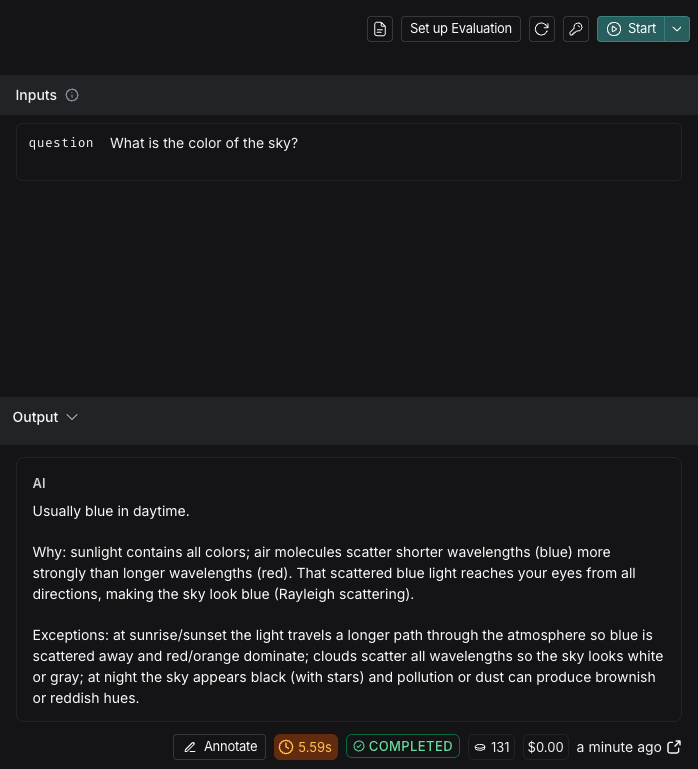
3. 在 **Inputs** 框中指定你想要测试的输入变量,然后点击 **Start**。
要了解在 Playground 中配置提示词的更多选项,请参阅[配置提示词设置](/langsmith/managing-model-configurations)。
4. 测试并优化你的提示词后,点击 **Save** 将其存储以供将来使用。
## 4. 迭代提示词
LangSmith 支持基于团队的提示词迭代。[工作区](/langsmith/administration-overview#workspaces)成员可以在 Playground 中尝试提示词,并在准备好时将更改保存为新的[提交](/langsmith/prompt-engineering-concepts#commits)。
要改进你的提示词:
* 参考模型提供商提供的文档,了解提示词创建的最佳实践,例如:
* [使用 OpenAI API 进行提示工程的最佳实践](https://help.openai.com/en/articles/6654000-best-practices-for-prompt-engineering-with-the-openai-api)
* [Gemini 提示设计简介](https://ai.google.dev/gemini-api/docs/prompting-intro)
* 使用 Prompt Canvas(LangSmith 中的一个交互式工具)构建和优化你的提示词。在 [Prompt Canvas 指南](/langsmith/write-prompt-with-ai)中了解更多。
* 为特定提交打标签,以标记提交历史中的重要时刻。
1. 要创建提交,请导航到 **Playground** 并选择 **Commit**。选择要提交更改的提示词,然后点击 **Commit**。
2. 导航到左侧菜单中的 **Prompts**。选择提示词。在提示词详情页面,选择右上角的 **Tag** 来添加[提交标签](/langsmith/manage-prompts#commit-tags)。
## 1. 设置你的环境
1. 在你的终端中,准备你的环境:
```bash Python theme={"theme":{"light":"catppuccin-latte","dark":"catppuccin-mocha"}}
mkdir ls-prompt-quickstart && cd ls-prompt-quickstart
python -m venv .venv
source .venv/bin/activate
pip install -qU langsmith openai langchain_core
```
```bash TypeScript theme={"theme":{"light":"catppuccin-latte","dark":"catppuccin-mocha"}}
mkdir ls-prompt-quickstart-ts && cd ls-prompt-quickstart-ts
npm init -y
npm install langsmith openai typescript ts-node
npx tsc --init
```
2. 设置你的 API 密钥:
```bash theme={"theme":{"light":"catppuccin-latte","dark":"catppuccin-mocha"}}
export LANGSMITH_API_KEY=''
export OPENAI_API_KEY=''
```
## 2. 创建提示词
要创建提示词,你需要定义提示词中所需的消息列表,然后将其推送到 LangSmith。
使用特定语言的构造函数和推送方法:
* Python: [`ChatPromptTemplate`](https://reference.langchain.com/python/langchain-core/prompts/chat/ChatPromptTemplate) → [`client.push_prompt(...)`](https://docs.smith.langchain.com/reference/python/client/langsmith.client.Client#langsmith.client.Client.push_prompt)
* TypeScript: [`ChatPromptTemplate.fromMessages(...)`](https://reference.langchain.com/javascript/langchain-core/prompts/ChatPromptTemplate) → [`client.pushPrompt(...)`](https://reference.langchain.com/javascript/langsmith/client/Client/pushPrompt)
1. 将以下代码添加到 `create_prompt` 文件中:
```python Python theme={"theme":{"light":"catppuccin-latte","dark":"catppuccin-mocha"}}
from langsmith import Client
from langchain_core.prompts import ChatPromptTemplate
client = Client()
prompt = ChatPromptTemplate([
("system", "You are a helpful chatbot."),
("user", "{question}"),
])
client.push_prompt("prompt-quickstart", object=prompt)
```
```typescript TypeScript theme={"theme":{"light":"catppuccin-latte","dark":"catppuccin-mocha"}}
import { Client } from "langsmith";
import { ChatPromptTemplate } from "@langchain/core/prompts";
const client = new Client();
const prompt = ChatPromptTemplate.fromMessages([
["system", "You are a helpful chatbot."],
["user", "{question}"],
]);
await client.pushPrompt("prompt-quickstart", {
object: prompt,
});
```
这会创建一个有序的消息列表,将它们包装在 `ChatPromptTemplate` 中,然后按名称将提示词推送到你的[工作区](/langsmith/administration-overview#workspaces)以进行版本控制和重用。
2. 运行 `create_prompt`:
```python Python theme={"theme":{"light":"catppuccin-latte","dark":"catppuccin-mocha"}}
python create_prompt.py
```
```typescript TypeScript theme={"theme":{"light":"catppuccin-latte","dark":"catppuccin-mocha"}}
npx tsx create_prompt.ts
```
按照生成的链接在 LangSmith UI 中查看新创建的 Prompt Hub 提示词。
## 3. 测试提示词
在此步骤中,你将按名称(`"prompt-quickstart"`)拉取你在[步骤 2](#2-create-a-prompt)中创建的提示词,使用测试输入对其进行格式化,将其转换为 OpenAI 的聊天格式,然后调用 OpenAI Chat Completions API。
然后,你将通过创建一个新版本来迭代提示词。你的工作区成员可以打开一个现有的提示词,在 [UI](https://smith.langchain.com) 中尝试更改,并将这些更改作为同一提示词上的新提交保存,从而为整个团队保留历史记录。
1. 将以下内容添加到 `test_prompt` 文件中:
```python Python theme={"theme":{"light":"catppuccin-latte","dark":"catppuccin-mocha"}}
from langsmith import Client
from openai import OpenAI
from langchain_core.messages import convert_to_openai_messages
client = Client()
oai_client = OpenAI()
prompt = client.pull_prompt("prompt-quickstart")
# Since the prompt only has one variable you could also pass in the value directly
# Equivalent to formatted_prompt = prompt.invoke("What is the color of the sky?")
formatted_prompt = prompt.invoke({"question": "What is the color of the sky?"})
response = oai_client.chat.completions.create(
model="gpt-5.4",
messages=convert_to_openai_messages(formatted_prompt.messages),
)
```
```typescript TypeScript theme={"theme":{"light":"catppuccin-latte","dark":"catppuccin-mocha"}}
import { OpenAI } from "openai";
import { pull } from "langchain/hub"
import { convertPromptToOpenAI } from "@langchain/openai";
const oaiClient = new OpenAI();
const prompt = await pull("prompt-quickstart");
// Format the prompt with the question
const formattedPrompt = await prompt.invoke({ question: "What is the color of the sky?" });
const response = await oaiClient.chat.completions.create({
model: "gpt-5.4",
messages: convertPromptToOpenAI(formattedPrompt).messages,
});
```
这会使用 `pull` 按名称加载提示词,获取你正在测试的提示词的最新提交版本。你也可以通过传递提交哈希 `":"` 来指定特定的提交。
2. 运行 `test_prompt`:
```python Python theme={"theme":{"light":"catppuccin-latte","dark":"catppuccin-mocha"}}
python test_prompt.py
```
```typescript TypeScript theme={"theme":{"light":"catppuccin-latte","dark":"catppuccin-mocha"}}
npx tsx test_prompt.ts
```
3. 要创建提示词的新版本,请使用与最初相同的提示词名称和更新后的模板调用相同的推送方法。LangSmith 会将其记录为新的提交并保留先前的版本。
将以下代码复制到 `iterate_prompt` 文件中:
```python Python theme={"theme":{"light":"catppuccin-latte","dark":"catppuccin-mocha"}}
from langsmith import Client
from langchain_core.prompts import ChatPromptTemplate
client = Client()
new_prompt = ChatPromptTemplate([
("system", "You are a helpful chatbot. Respond in Spanish."),
("user", "{question}"),
])
client.push_prompt("prompt-quickstart", object=new_prompt)
```
```typescript TypeScript theme={"theme":{"light":"catppuccin-latte","dark":"catppuccin-mocha"}}
import { Client } from "langsmith";
import { ChatPromptTemplate } from "@langchain/core/prompts";
const client = new Client();
const newPrompt = ChatPromptTemplate.fromMessages([
["system", "You are a helpful chatbot. Speak in Spanish."],
["user", "{question}"]
]);
await client.pushPrompt("prompt-quickstart", {
object: newPrompt
});
```
4. 运行 `iterate_prompt`:
```python Python theme={"theme":{"light":"catppuccin-latte","dark":"catppuccin-mocha"}}
python iterate_prompt.py
```
```typescript TypeScript theme={"theme":{"light":"catppuccin-latte","dark":"catppuccin-mocha"}}
npx tsx iterate_prompt.ts
```
现在你的提示词将包含两个提交。
要改进你的提示词:
* 参考模型提供商提供的文档,了解提示词创建的最佳实践,例如:
* [使用 OpenAI API 进行提示工程的最佳实践](https://help.openai.com/en/articles/6654000-best-practices-for-prompt-engineering-with-the-openai-api)
* [Gemini 提示设计简介](https://ai.google.dev/gemini-api/docs/prompting-intro)
* 使用 Prompt Canvas(LangSmith 中的一个交互式工具)构建和优化你的提示词。在 [Prompt Canvas 指南](/langsmith/write-prompt-with-ai)中了解更多。
## 后续步骤
* 在[创建提示词指南](/langsmith/create-a-prompt)中了解更多关于如何使用 Prompt Hub 存储和管理提示词的信息。
* 在本教程中了解如何设置 Playground 来[测试多轮对话](/langsmith/multiple-messages)。
* 了解如何针对数据集而非单个示例测试提示词的性能,请参阅[从 Playground 运行评估](/langsmith/run-evaluation-from-playground)。
在 Playground 中使用 **[Polly](/langsmith/polly)** 来帮助优化你的提示词、生成工具和创建输出模式。
***
[将这些文档](/use-these-docs)通过 MCP 连接到 Claude、VSCode 等,以获取实时答案。
[在 GitHub 上编辑此页面](https://github.com/langchain-ai/docs/edit/main/src/langsmith/prompt-engineering-quickstart.mdx) 或 [提交问题](https://github.com/langchain-ai/docs/issues/new/choose)。