> ## Documentation Index
> Fetch the complete documentation index at: https://cndoc-langchain.site/llms.txt
> Use this file to discover all available pages before exploring further.
# 过滤追踪
**推荐阅读**:有关本页提及概念的更多详情,请参阅[追踪概念指南](/langsmith/observability-concepts)。
追踪项目可能包含大量数据。您可以使用过滤器来导航和分析这些数据,从而能够:
* 快速缩小范围至特定运行,进行临时分析。
* 识别并检查错误、失败的运行以及性能瓶颈。
本页介绍如何在追踪项目中过滤运行。如果您通过 [API](https://api.smith.langchain.com/redoc#tag/run/operation/query_runs_api_v1_runs_query_post) 或 [SDK](https://docs.smith.langchain.com/reference/python/client/langsmith.client.Client#langsmith.client.Client.list_runs) 以编程方式导出运行进行分析,请参阅[导出追踪指南](/langsmith/export-traces)获取更多信息。
## 创建和应用过滤器
### 按运行属性过滤
在追踪项目中过滤运行有两种方式:
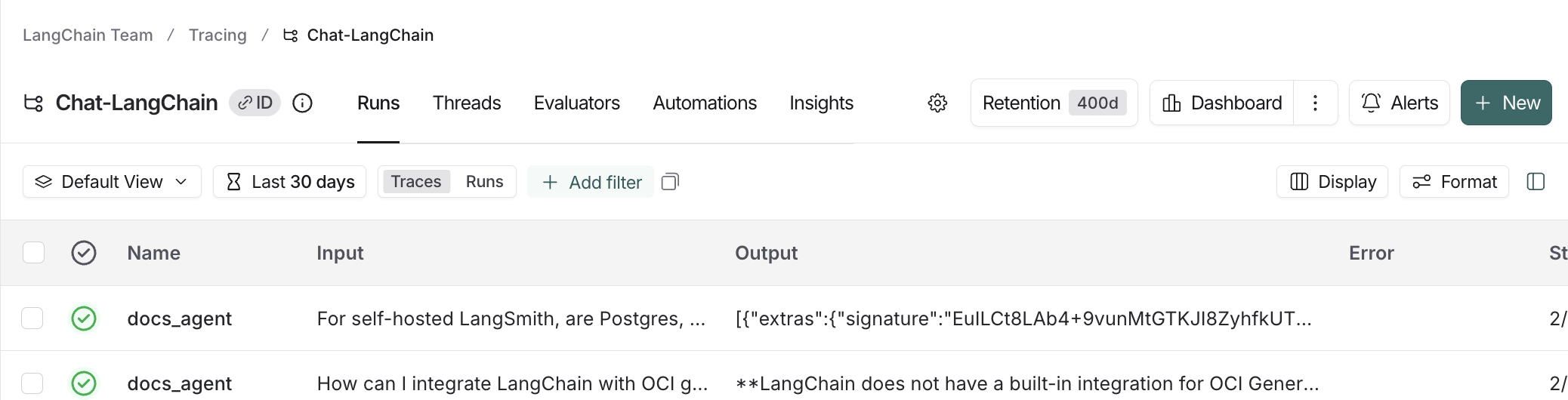
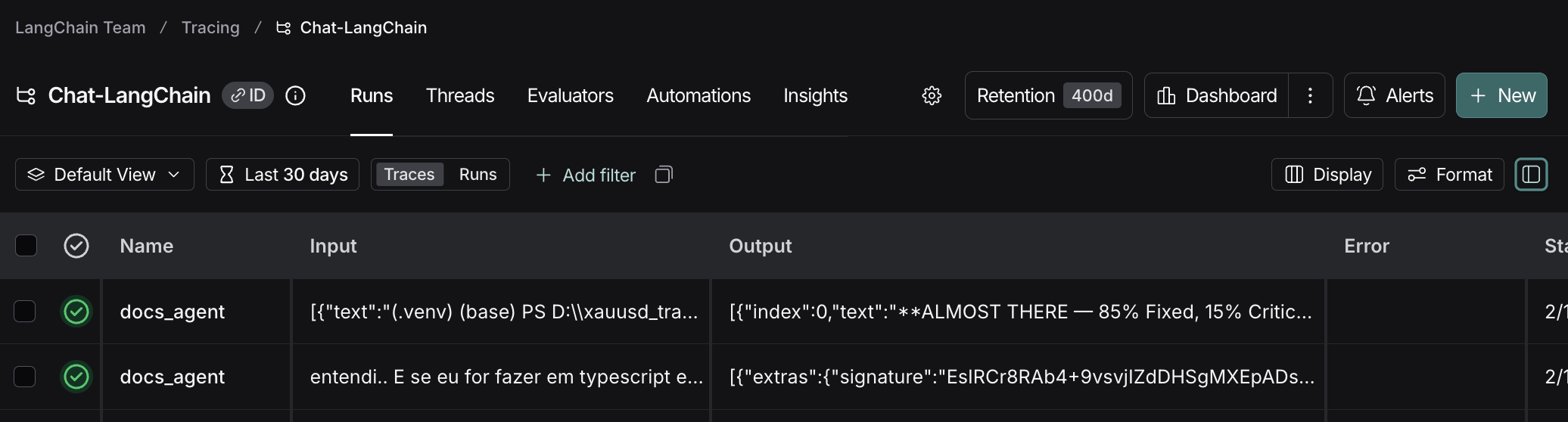
1. **过滤器**:位于**追踪**项目页面的左上角。这是您构建和管理过滤条件的地方。
* 第一个下拉菜单用于过滤默认和[已保存的视图](#保存过滤器)。
* 按**追踪**或**运行**快速过滤。
* **+ 添加过滤器**以[基于属性或全文搜索配置过滤器](#特定过滤技术)。
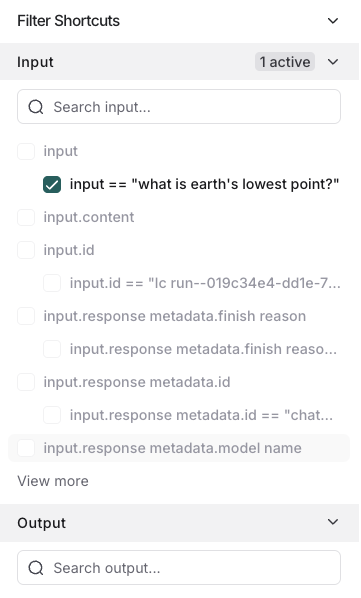
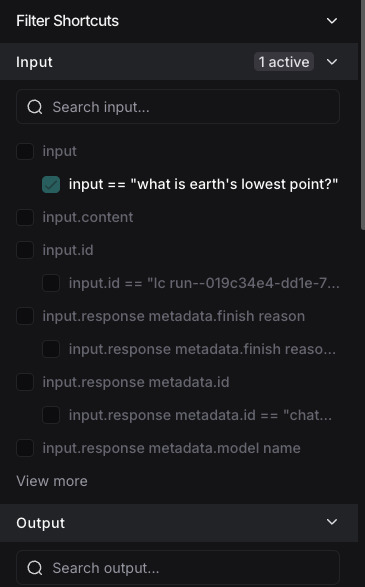
 2. **过滤器快捷方式**:位于**追踪**项目页面的右侧边栏。过滤器快捷方式栏提供基于项目运行中最常见属性的快速访问过滤器。
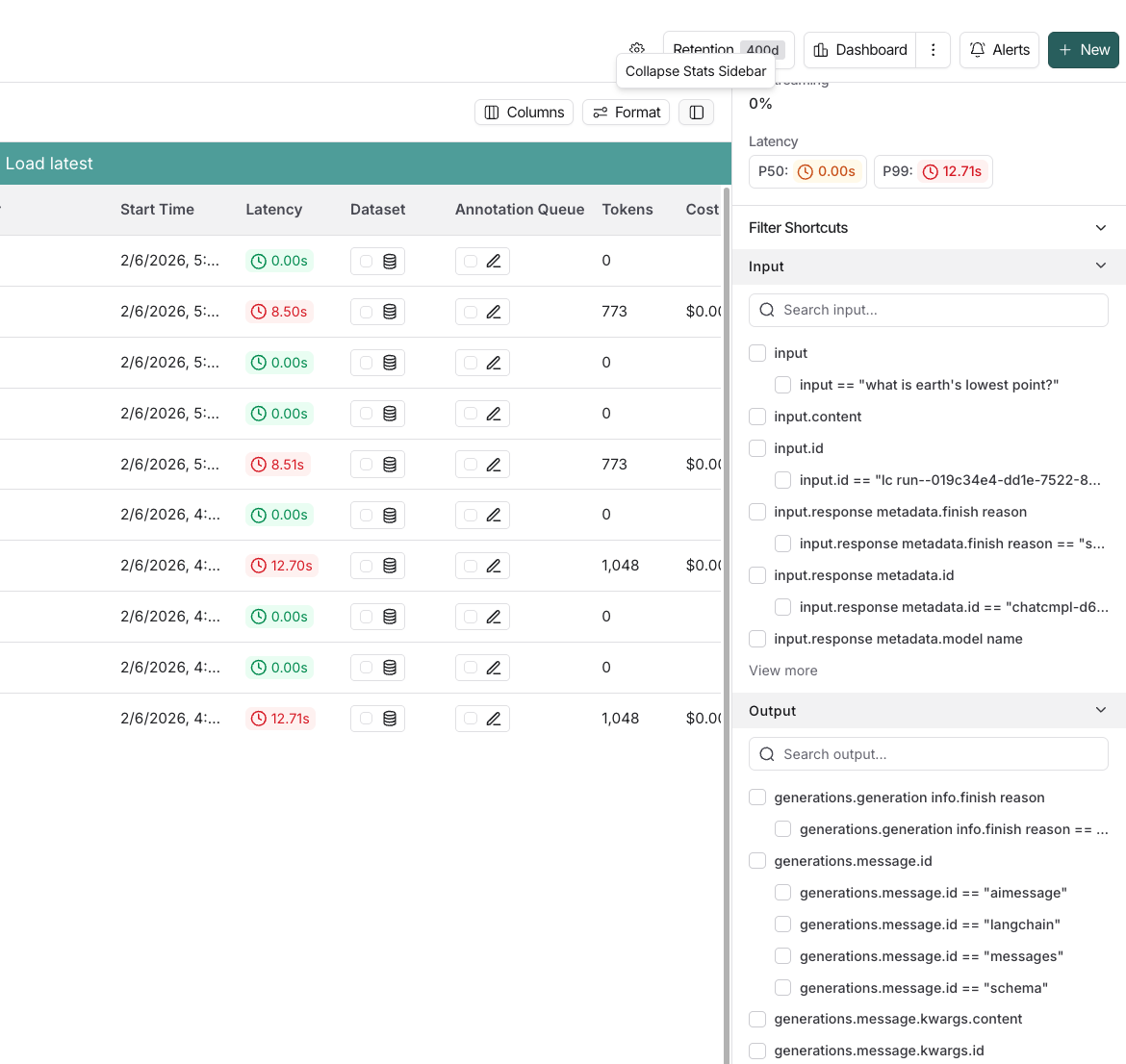
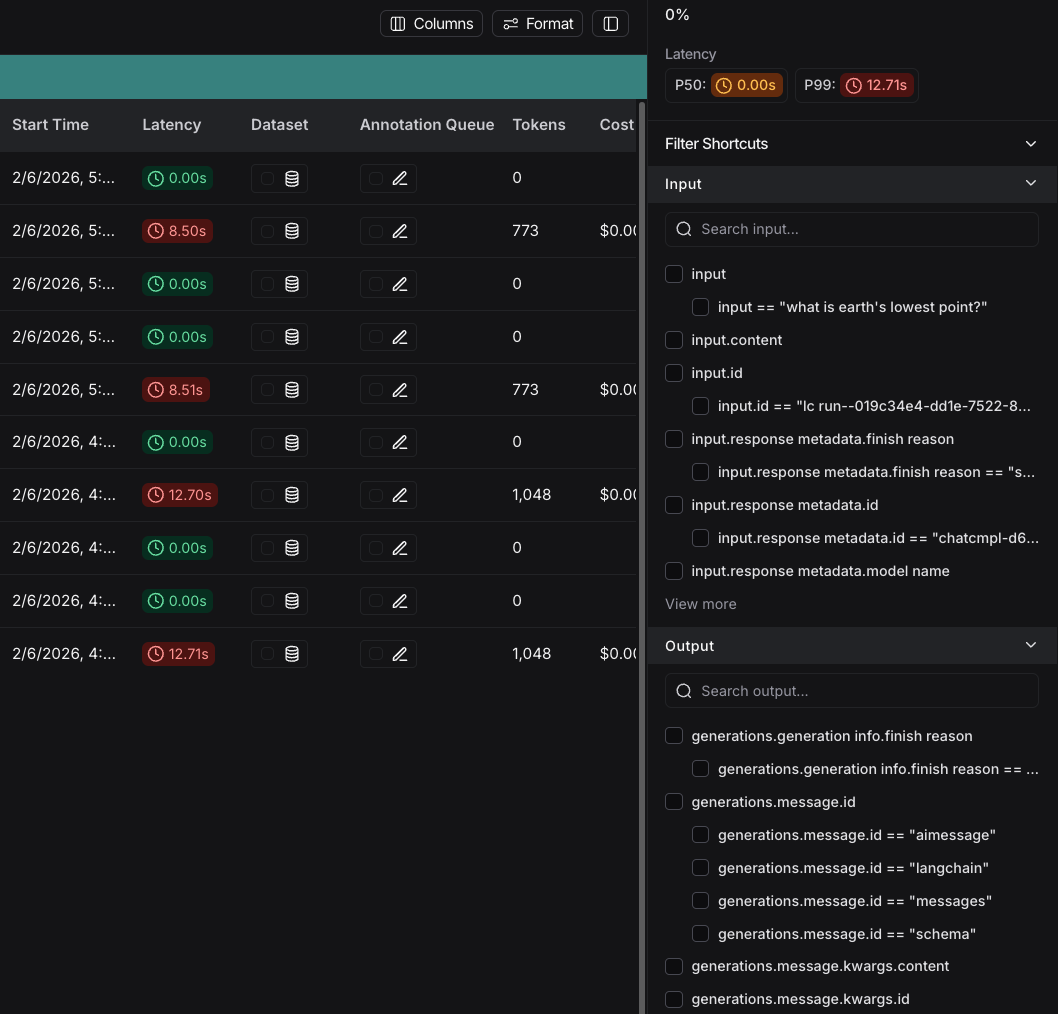 默认情况下,应用**追踪**过滤器,仅显示顶级根运行。您可以切换到**运行**以显示所有运行。
### 过滤运算符
可用的过滤运算符取决于您正在过滤的属性的数据类型。以下是常见运算符的概述:
* **is**:与过滤值精确匹配
* **is not**:与过滤值反向匹配
* **contains**:与过滤值部分匹配
* **does not contain**:与过滤值反向部分匹配
* **is one of**:与列表中的任一值匹配
* `>` / `<`:适用于数值字段
## 特定过滤技术
### 过滤运行(跨度)
要过滤运行(跨度),请将默认的**追踪**更改为**运行**。例如,如果您想按运行的**运行名称**过滤或按**运行类型**过滤,就需要这样做。
运行元数据和标签也是有用的过滤依据。这依赖于管道各部分的良好标签实践。要了解更多信息,请参阅[向追踪添加元数据和标签](/langsmith/add-metadata-tags)。
当您指定更多过滤器时,可以单独点击每个过滤器以更新您正在搜索的属性。
### 基于输入和输出过滤
您可以根据运行输入和输出中的内容过滤运行。
要过滤输入或输出,您可以使用 ** 全文搜索**过滤器,它将匹配任一字段中的关键词。要进行更精确的搜索,您可以使用 **{} 输入**或 ** 输出**过滤器,它们将仅根据相应字段匹配内容。
为了性能考虑,我们为全文搜索索引最多 250 个字符的数据。如果您的搜索查询超过此限制,我们建议改用[输入/输出键值对搜索](/langsmith/filter-traces-in-application#基于输入-%2F-输出键值对过滤)。
您也可以指定多个条件以匹配所有提供的术语,方法如下:
* 使用**全文搜索**包含由空格分隔的多个术语。
* 在添加第一个过滤器后,使用 按钮添加多个过滤器。
LangSmith 通过拆分文本并查找搜索关键词的任何部分匹配来完成关键词搜索,因此它不是按特定顺序执行的。LangSmith 从搜索中排除常见的停用词(来自 nltk 停用词列表以及一些其他常见的 JSON 关键词)。
令牌必须至少 2 个字符长才能被索引。单字符令牌(例如 `a`、`x`)不包含在搜索中。
默认情况下,应用**追踪**过滤器,仅显示顶级根运行。您可以切换到**运行**以显示所有运行。
### 过滤运算符
可用的过滤运算符取决于您正在过滤的属性的数据类型。以下是常见运算符的概述:
* **is**:与过滤值精确匹配
* **is not**:与过滤值反向匹配
* **contains**:与过滤值部分匹配
* **does not contain**:与过滤值反向部分匹配
* **is one of**:与列表中的任一值匹配
* `>` / `<`:适用于数值字段
## 特定过滤技术
### 过滤运行(跨度)
要过滤运行(跨度),请将默认的**追踪**更改为**运行**。例如,如果您想按运行的**运行名称**过滤或按**运行类型**过滤,就需要这样做。
运行元数据和标签也是有用的过滤依据。这依赖于管道各部分的良好标签实践。要了解更多信息,请参阅[向追踪添加元数据和标签](/langsmith/add-metadata-tags)。
当您指定更多过滤器时,可以单独点击每个过滤器以更新您正在搜索的属性。
### 基于输入和输出过滤
您可以根据运行输入和输出中的内容过滤运行。
要过滤输入或输出,您可以使用 ** 全文搜索**过滤器,它将匹配任一字段中的关键词。要进行更精确的搜索,您可以使用 **{} 输入**或 ** 输出**过滤器,它们将仅根据相应字段匹配内容。
为了性能考虑,我们为全文搜索索引最多 250 个字符的数据。如果您的搜索查询超过此限制,我们建议改用[输入/输出键值对搜索](/langsmith/filter-traces-in-application#基于输入-%2F-输出键值对过滤)。
您也可以指定多个条件以匹配所有提供的术语,方法如下:
* 使用**全文搜索**包含由空格分隔的多个术语。
* 在添加第一个过滤器后,使用 按钮添加多个过滤器。
LangSmith 通过拆分文本并查找搜索关键词的任何部分匹配来完成关键词搜索,因此它不是按特定顺序执行的。LangSmith 从搜索中排除常见的停用词(来自 nltk 停用词列表以及一些其他常见的 JSON 关键词)。
令牌必须至少 2 个字符长才能被索引。单字符令牌(例如 `a`、`x`)不包含在搜索中。

 根据图中的过滤器,系统将在输入或输出中搜索 `python` 和 `tensorflow`,并在输入中搜索 `embedding`,在输出中搜索 `fine` 和 `tune`。
您可以根据需要从过滤器路径中移除过滤器,这将扩大搜索范围至剩余的过滤器。
### 基于输入/输出键值对过滤
除了全文搜索,您还可以根据输入和输出中的特定键值对过滤运行。这允许更精确的过滤,尤其是在处理结构化数据时。
LangSmith 为每个运行索引最多 100 个唯一键,以保持数据的组织性和可搜索性。每个键的值也限制为 250 个字符。如果您的数据超过任一限制,文本将不会被索引。这有助于确保快速、可靠的性能。
要基于键值对过滤,例如,匹配以下输入:
```json theme={"theme":{"light":"catppuccin-latte","dark":"catppuccin-mocha"}}
{
"input": "What is the capital of France?"
}
```
1. 选择 **+ 添加过滤器**。
2. 从第一个下拉菜单中选择 **Input**,将第二个下拉菜单保留为 **Key**,并选择 `input` 作为键。
3. 点击 **+ Value** 并输入值:`What is the capital of France?`。
根据图中的过滤器,系统将在输入或输出中搜索 `python` 和 `tensorflow`,并在输入中搜索 `embedding`,在输出中搜索 `fine` 和 `tune`。
您可以根据需要从过滤器路径中移除过滤器,这将扩大搜索范围至剩余的过滤器。
### 基于输入/输出键值对过滤
除了全文搜索,您还可以根据输入和输出中的特定键值对过滤运行。这允许更精确的过滤,尤其是在处理结构化数据时。
LangSmith 为每个运行索引最多 100 个唯一键,以保持数据的组织性和可搜索性。每个键的值也限制为 250 个字符。如果您的数据超过任一限制,文本将不会被索引。这有助于确保快速、可靠的性能。
要基于键值对过滤,例如,匹配以下输入:
```json theme={"theme":{"light":"catppuccin-latte","dark":"catppuccin-mocha"}}
{
"input": "What is the capital of France?"
}
```
1. 选择 **+ 添加过滤器**。
2. 从第一个下拉菜单中选择 **Input**,将第二个下拉菜单保留为 **Key**,并选择 `input` 作为键。
3. 点击 **+ Value** 并输入值:`What is the capital of France?`。
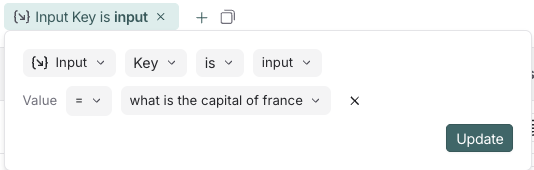
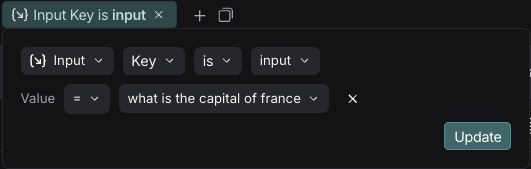 您还可以使用点表示法选择嵌套键名来匹配嵌套键。例如,要匹配输出中的嵌套键:
```json theme={"theme":{"light":"catppuccin-latte","dark":"catppuccin-mocha"}}
{
"documents": [
{
"page_content": "The capital of France is Paris",
"metadata": {},
"type": "Document"
}
]
}
```
选择 `Output Key`,输入 `documents.page_content` 作为键,并输入 `The capital of France is Paris` 作为值。这将匹配嵌套键 `documents.page_content` 与指定的值。
您还可以使用点表示法选择嵌套键名来匹配嵌套键。例如,要匹配输出中的嵌套键:
```json theme={"theme":{"light":"catppuccin-latte","dark":"catppuccin-mocha"}}
{
"documents": [
{
"page_content": "The capital of France is Paris",
"metadata": {},
"type": "Document"
}
]
}
```
选择 `Output Key`,输入 `documents.page_content` 作为键,并输入 `The capital of France is Paris` 作为值。这将匹配嵌套键 `documents.page_content` 与指定的值。
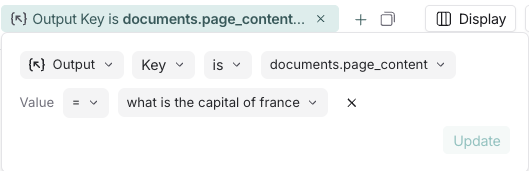
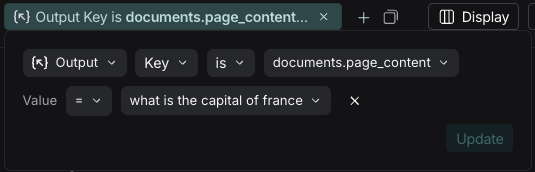 您可以添加多个键值过滤器以创建更复杂的查询。您也可以使用右侧的**过滤器快捷方式**快速基于常见的键值对进行过滤:
 ### 示例:过滤工具调用
搜索包含特定工具调用的追踪是很常见的。工具调用通常在 LLM 运行的输出中指示。要过滤工具调用,您将使用 **Output Key** 过滤器。
虽然此示例将向您展示如何过滤工具调用,但相同的逻辑可用于过滤输出中的任何键值对。
在这种情况下,假设这是您想要过滤的输出:
```json theme={"theme":{"light":"catppuccin-latte","dark":"catppuccin-mocha"}}
{
"generations": [
[
{
"text": "",
"type": "ChatGeneration",
"message": {
"lc": 1,
"type": "constructor",
"id": [],
"kwargs": {
"type": "ai",
"id": "run-ca7f7531-f4de-4790-9c3e-960be7f8b109",
"tool_calls": [
{
"name": "Plan",
"args": {
"steps": [
"Research LangGraph's node configuration capabilities",
"Investigate how to add a Python code execution node",
"Find an example or create a sample implementation of a code execution node"
]
},
"id": "toolu_01XexPzAVknT3gRmUB5PK5BP",
"type": "tool_call"
}
]
}
}
}
]
],
"llm_output": null,
"run": null,
"type": "LLMResult"
}
```
根据此示例,KV 搜索将把每个嵌套的 JSON 路径映射为一个键值对,供您用于搜索和过滤。
LangSmith 将其分解为以下可搜索的键值对集合:
| 键 | 值 |
| -------------------------------------------------- | ---------------------------------------------------------------------------- |
| `generations.type` | `ChatGeneration` |
| `generations.message.type` | `constructor` |
| `generations.message.kwargs.type` | `ai` |
| `generations.message.kwargs.id` | `run-ca7f7531-f4de-4790-9c3e-960be7f8b109` |
| `generations.message.kwargs.tool_calls.name` | `Plan` |
| `generations.message.kwargs.tool_calls.args.steps` | `Research LangGraph's node configuration capabilities` |
| `generations.message.kwargs.tool_calls.args.steps` | `Investigate how to add a Python code execution node` |
| `generations.message.kwargs.tool_calls.args.steps` | `Find an example or create a sample implementation of a code execution node` |
| `generations.message.kwargs.tool_calls.id` | `toolu_01XexPzAVknT3gRmUB5PK5BP` |
| `generations.message.kwargs.tool_calls.type` | `tool_call` |
| `type` | `LLMResult` |
要搜索特定的工具调用,您可以使用以下 **Output Key** 搜索,同时移除根运行过滤器:
`generations.message.kwargs.tool_calls.name` = `Plan`
这将匹配 `tool_calls` 名称为 `Plan` 的根运行和非根运行。
### 键值对的反向过滤
不同类型的反向过滤可以应用于 ** 元数据**、** 输入**和 ** 输出**字段,以从结果中排除特定运行。
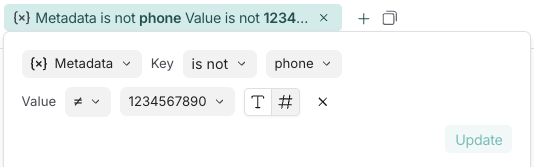
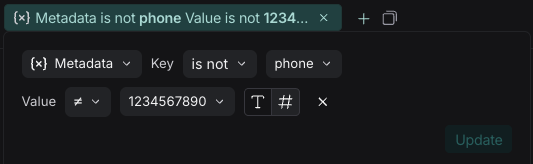
例如,要查找所有元数据键 `phone` 不等于 `1234567890` 的运行:
1. 将 **Metadata Key** 运算符设置为 `is`,**Key** 字段设置为 `phone`。
2. 将 **Value** 运算符设置为 `is not`,**Value** 字段设置为 `1234567890`。
这将匹配所有具有元数据键 `phone` 且值不是 `1234567890` 的运行。
要查找没有特定元数据键的运行:将 **Key** 运算符设置为 `is not`。例如,将 `Key` 运算符设置为 `is not`,键为 `phone`,将匹配所有元数据中没有 `phone` 字段的运行。
您也可以过滤既没有特定键也没有特定值的运行。要查找元数据中既没有键 `phone` 也没有任何字段值为 `1234567890` 的运行,请将 **Key** 运算符设置为 `is not`,键为 `phone`,并将 **Value** 运算符设置为 `is not`,值为 `1234567890`。
### 示例:过滤工具调用
搜索包含特定工具调用的追踪是很常见的。工具调用通常在 LLM 运行的输出中指示。要过滤工具调用,您将使用 **Output Key** 过滤器。
虽然此示例将向您展示如何过滤工具调用,但相同的逻辑可用于过滤输出中的任何键值对。
在这种情况下,假设这是您想要过滤的输出:
```json theme={"theme":{"light":"catppuccin-latte","dark":"catppuccin-mocha"}}
{
"generations": [
[
{
"text": "",
"type": "ChatGeneration",
"message": {
"lc": 1,
"type": "constructor",
"id": [],
"kwargs": {
"type": "ai",
"id": "run-ca7f7531-f4de-4790-9c3e-960be7f8b109",
"tool_calls": [
{
"name": "Plan",
"args": {
"steps": [
"Research LangGraph's node configuration capabilities",
"Investigate how to add a Python code execution node",
"Find an example or create a sample implementation of a code execution node"
]
},
"id": "toolu_01XexPzAVknT3gRmUB5PK5BP",
"type": "tool_call"
}
]
}
}
}
]
],
"llm_output": null,
"run": null,
"type": "LLMResult"
}
```
根据此示例,KV 搜索将把每个嵌套的 JSON 路径映射为一个键值对,供您用于搜索和过滤。
LangSmith 将其分解为以下可搜索的键值对集合:
| 键 | 值 |
| -------------------------------------------------- | ---------------------------------------------------------------------------- |
| `generations.type` | `ChatGeneration` |
| `generations.message.type` | `constructor` |
| `generations.message.kwargs.type` | `ai` |
| `generations.message.kwargs.id` | `run-ca7f7531-f4de-4790-9c3e-960be7f8b109` |
| `generations.message.kwargs.tool_calls.name` | `Plan` |
| `generations.message.kwargs.tool_calls.args.steps` | `Research LangGraph's node configuration capabilities` |
| `generations.message.kwargs.tool_calls.args.steps` | `Investigate how to add a Python code execution node` |
| `generations.message.kwargs.tool_calls.args.steps` | `Find an example or create a sample implementation of a code execution node` |
| `generations.message.kwargs.tool_calls.id` | `toolu_01XexPzAVknT3gRmUB5PK5BP` |
| `generations.message.kwargs.tool_calls.type` | `tool_call` |
| `type` | `LLMResult` |
要搜索特定的工具调用,您可以使用以下 **Output Key** 搜索,同时移除根运行过滤器:
`generations.message.kwargs.tool_calls.name` = `Plan`
这将匹配 `tool_calls` 名称为 `Plan` 的根运行和非根运行。
### 键值对的反向过滤
不同类型的反向过滤可以应用于 ** 元数据**、** 输入**和 ** 输出**字段,以从结果中排除特定运行。
例如,要查找所有元数据键 `phone` 不等于 `1234567890` 的运行:
1. 将 **Metadata Key** 运算符设置为 `is`,**Key** 字段设置为 `phone`。
2. 将 **Value** 运算符设置为 `is not`,**Value** 字段设置为 `1234567890`。
这将匹配所有具有元数据键 `phone` 且值不是 `1234567890` 的运行。
要查找没有特定元数据键的运行:将 **Key** 运算符设置为 `is not`。例如,将 `Key` 运算符设置为 `is not`,键为 `phone`,将匹配所有元数据中没有 `phone` 字段的运行。
您也可以过滤既没有特定键也没有特定值的运行。要查找元数据中既没有键 `phone` 也没有任何字段值为 `1234567890` 的运行,请将 **Key** 运算符设置为 `is not`,键为 `phone`,并将 **Value** 运算符设置为 `is not`,值为 `1234567890`。
 最后,您也可以过滤没有特定键但有特定值的运行。要查找没有 `phone` 键但其他某个键的值为 `1234567890` 的运行,请将 **Key** 运算符设置为 `is not`,键为 `phone`,并将 **Value** 运算符设置为 `is`,值为 `1234567890`。
您可以使用 `does not contain` 运算符代替 `is not` 来执行子字符串匹配。
## 保存过滤器
保存过滤器允许您存储和重用常用的过滤器配置。保存的过滤器特定于某个追踪项目。
构建过滤器后,点击 **Save as** 按钮进行保存。这将弹出一个对话框,用于指定过滤器的名称和描述。
最后,您也可以过滤没有特定键但有特定值的运行。要查找没有 `phone` 键但其他某个键的值为 `1234567890` 的运行,请将 **Key** 运算符设置为 `is not`,键为 `phone`,并将 **Value** 运算符设置为 `is`,值为 `1234567890`。
您可以使用 `does not contain` 运算符代替 `is not` 来执行子字符串匹配。
## 保存过滤器
保存过滤器允许您存储和重用常用的过滤器配置。保存的过滤器特定于某个追踪项目。
构建过滤器后,点击 **Save as** 按钮进行保存。这将弹出一个对话框,用于指定过滤器的名称和描述。

 保存过滤器后,它将作为快速过滤器出现在视图下拉菜单中供您使用。
### 更新已保存的过滤器
在下拉菜单中选择过滤器后,您可以对过滤器参数进行任何更改。然后,点击 **Save** 以更新过滤器。
### 删除已保存的过滤器
点击下拉菜单中已保存过滤器旁边的 图标,然后使用垃圾桶 图标删除过滤器。
## 复制过滤器
您可以复制已构建的过滤器,以便与同事共享、稍后重用,或在 [API](https://api.smith.langchain.com/redoc#tag/run/operation/query_runs_api_v1_runs_query_post) 或 [SDK](https://docs.smith.langchain.com/reference/python/client/langsmith.client.Client#langsmith.client.Client.list_runs) 中以编程方式查询运行。
要复制过滤器:
1. 在 UI 中创建它。
2. 点击过滤器栏中的 图标。如果您构建了树或追踪过滤器,也可以复制它们。
3. 这将为您提供一个表示 LangSmith 查询语言中过滤器的字符串。例如:`and(eq(is_root, true), and(eq(feedback_key, "user_score"), eq(feedback_score, 1)))`。
有关查询语言语法的更多信息,请参阅[追踪查询语法](/langsmith/trace-query-syntax#filter-query-language)。
## 在追踪视图中过滤运行
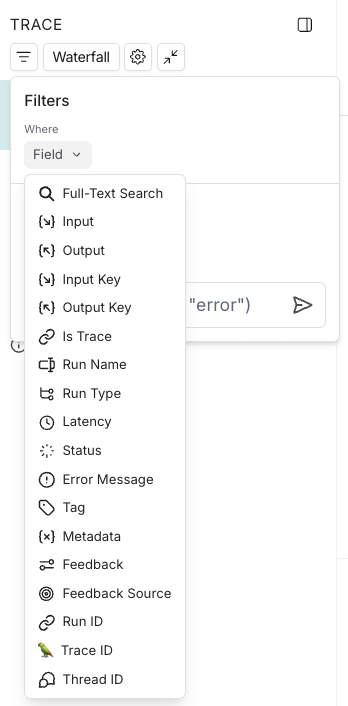
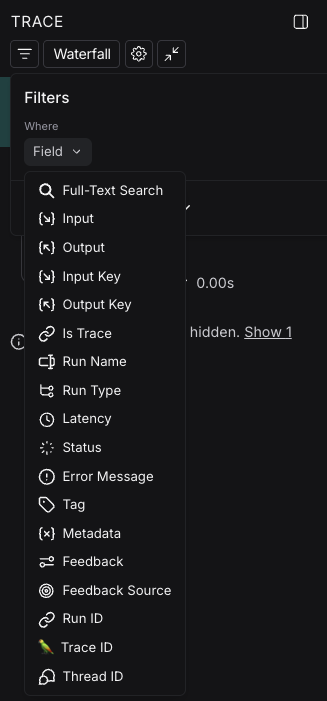
您也可以直接在追踪视图中应用过滤器,这对于筛选包含大量运行的追踪非常有用。主运行表视图中可用的相同过滤器可以应用于此处。
默认情况下,仅显示与过滤器匹配的运行。要在追踪树的更广泛上下文中查看匹配的运行,请将视图选项从“仅过滤”切换为“显示全部”或“最相关”。
保存过滤器后,它将作为快速过滤器出现在视图下拉菜单中供您使用。
### 更新已保存的过滤器
在下拉菜单中选择过滤器后,您可以对过滤器参数进行任何更改。然后,点击 **Save** 以更新过滤器。
### 删除已保存的过滤器
点击下拉菜单中已保存过滤器旁边的 图标,然后使用垃圾桶 图标删除过滤器。
## 复制过滤器
您可以复制已构建的过滤器,以便与同事共享、稍后重用,或在 [API](https://api.smith.langchain.com/redoc#tag/run/operation/query_runs_api_v1_runs_query_post) 或 [SDK](https://docs.smith.langchain.com/reference/python/client/langsmith.client.Client#langsmith.client.Client.list_runs) 中以编程方式查询运行。
要复制过滤器:
1. 在 UI 中创建它。
2. 点击过滤器栏中的 图标。如果您构建了树或追踪过滤器,也可以复制它们。
3. 这将为您提供一个表示 LangSmith 查询语言中过滤器的字符串。例如:`and(eq(is_root, true), and(eq(feedback_key, "user_score"), eq(feedback_score, 1)))`。
有关查询语言语法的更多信息,请参阅[追踪查询语法](/langsmith/trace-query-syntax#filter-query-language)。
## 在追踪视图中过滤运行
您也可以直接在追踪视图中应用过滤器,这对于筛选包含大量运行的追踪非常有用。主运行表视图中可用的相同过滤器可以应用于此处。
默认情况下,仅显示与过滤器匹配的运行。要在追踪树的更广泛上下文中查看匹配的运行,请将视图选项从“仅过滤”切换为“显示全部”或“最相关”。
 ## 在 LangSmith 查询语言中手动指定原始查询
如果您[复制了先前构建的过滤器](#复制过滤器),您可能希望在未来的会话中手动应用此原始查询。
为此,您可以点击追踪视图中过滤器弹出窗口底部的 **Switch to raw query**。然后,您可以将原始查询粘贴到文本框中。
这将把该查询添加到现有查询中,而不是覆盖它。
## 高级过滤器
### 过滤根属性的运行(跨度)
一个常见的概念是过滤属于某个追踪的运行,该追踪的根运行具有某些属性。例如,过滤特定类型的运行,其根运行具有正面(或负面)反馈。操作如下:
1. 在追踪/运行切换中点击 **Runs**。
2. 添加另一个过滤器规则。然后,您可以点击过滤器下拉菜单底部的 **Advanced** 过滤器链接。
3. 将打开一个模态框,您可以在其中添加 **Trace** 过滤器。这些过滤器将应用于您已过滤的各个运行的所有父运行的追踪。
### 过滤子运行具有某些属性的运行(跨度)
您可能想要搜索具有特定类型子运行的运行。一个例子是搜索所有具有名为 `Foo` 的子运行的追踪。当 `Foo` 并非总是被调用,但您想分析它被调用的情况时,这很有用。
1. 在追踪/运行切换中点击 **Runs**。
2. 添加另一个过滤器规则。然后,您可以点击过滤器下拉菜单底部的 **Advanced** 过滤器链接。
3. 将打开一个模态框,您可以在其中添加 **Tree** 过滤器。这将使您指定的规则应用于您已过滤的各个运行的所有子运行。
### 示例:过滤其树包含工具调用过滤器的所有运行
扩展[工具调用过滤示例](#示例过滤工具调用),如果您想过滤所有\_其树包含\_工具过滤调用的运行,您可以使用 **Advanced** 过滤器设置中的树过滤器。
***
## 在 LangSmith 查询语言中手动指定原始查询
如果您[复制了先前构建的过滤器](#复制过滤器),您可能希望在未来的会话中手动应用此原始查询。
为此,您可以点击追踪视图中过滤器弹出窗口底部的 **Switch to raw query**。然后,您可以将原始查询粘贴到文本框中。
这将把该查询添加到现有查询中,而不是覆盖它。
## 高级过滤器
### 过滤根属性的运行(跨度)
一个常见的概念是过滤属于某个追踪的运行,该追踪的根运行具有某些属性。例如,过滤特定类型的运行,其根运行具有正面(或负面)反馈。操作如下:
1. 在追踪/运行切换中点击 **Runs**。
2. 添加另一个过滤器规则。然后,您可以点击过滤器下拉菜单底部的 **Advanced** 过滤器链接。
3. 将打开一个模态框,您可以在其中添加 **Trace** 过滤器。这些过滤器将应用于您已过滤的各个运行的所有父运行的追踪。
### 过滤子运行具有某些属性的运行(跨度)
您可能想要搜索具有特定类型子运行的运行。一个例子是搜索所有具有名为 `Foo` 的子运行的追踪。当 `Foo` 并非总是被调用,但您想分析它被调用的情况时,这很有用。
1. 在追踪/运行切换中点击 **Runs**。
2. 添加另一个过滤器规则。然后,您可以点击过滤器下拉菜单底部的 **Advanced** 过滤器链接。
3. 将打开一个模态框,您可以在其中添加 **Tree** 过滤器。这将使您指定的规则应用于您已过滤的各个运行的所有子运行。
### 示例:过滤其树包含工具调用过滤器的所有运行
扩展[工具调用过滤示例](#示例过滤工具调用),如果您想过滤所有\_其树包含\_工具过滤调用的运行,您可以使用 **Advanced** 过滤器设置中的树过滤器。
***
[将这些文档](/use-these-docs)通过 MCP 连接到 Claude、VSCode 等,以获取实时答案。
[在 GitHub 上编辑此页面](https://github.com/langchain-ai/docs/edit/main/src/langsmith/filter-traces-in-application.mdx) 或 [提交问题](https://github.com/langchain-ai/docs/issues/new/choose)。